
Quick Answer
Yes, you can download Facebook videos and Reels without a watermark. Open the video or Reel on Facebook, tap Share, then Copy link. Paste that link into the facebook video downloader on FClip, choose Normal quality or HD, and save the MP4. FClip adds no logo or username of its own to your file — the video you save is the video as it was posted.
One honest note before we start: if the creator burned their own logo, name or text into the video before uploading it, that stays. It is part of the picture itself, and no downloader can remove it. What you avoid is the extra watermark that appears when a Reel gets re-shared through another app, or when a screen recording catches the Facebook interface on top. This guide shows you how to get the clean version, and what to do when the file still isn’t clean.
Why Do Some Saved Facebook Reels Have a Watermark?
It usually comes down to where the video came from, not the video itself.
Re-shared through another app. When someone downloads a Reel from one platform and re-uploads it to Facebook (or the other way round), the exporting app stamps its own logo and the creator’s username across the video. That is the watermark most people are trying to get rid of.
Recorded from the screen. A screen recording captures everything — the video, yes, but also the like button, the caption, the progress bar and the username floating on top. The result is watchable, but it never looks clean.
Downloaded from a low-quality source. Some sites and apps re-encode the video and add their own branding to it as a condition of using them. You get the video, but it now carries their logo too.
The creator put it there. Many creators add a small logo or handle in a corner of the video before they post it, so their work is credited wherever it travels. That mark is baked into the video file. It is not a watermark added by a downloader, and it cannot be stripped out by one either.
The fix for the first three causes is the same: download the original video directly from its Facebook link instead of re-saving a copy that has already passed through other hands. That is what this guide does.
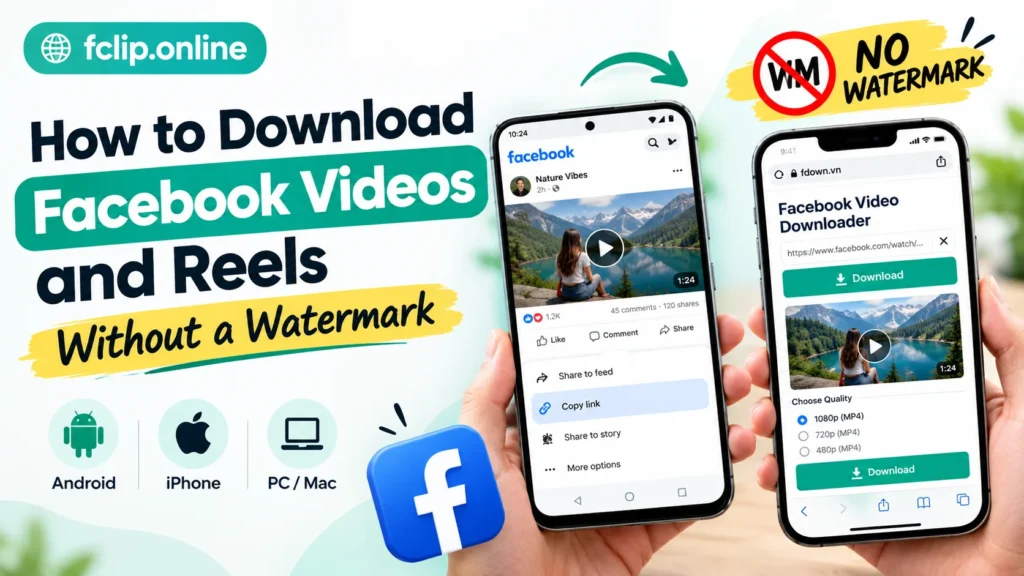
Can You Really Download a Facebook Video Without a Watermark?
Yes — if the video is public. A public Facebook video has a direct link, and a downloader can fetch the original video stream from that link and save it as an MP4. Nothing is added in the process: no logo, no username, no extra frame. The file you get is the same video, in the same quality, as the one playing on Facebook.
That is exactly what FClip does. It is a free, browser-based tool, so there is nothing to install and no account to create. It works the same way on Android, iPhone, PC and Mac.
The limits are honest and worth knowing up front:
- The video must be public. If it is visible only to friends, a private group, or a specific list, a normal downloader cannot reach it. FClip does not bypass Facebook’s privacy settings.
- The original quality is the ceiling. If a video was uploaded in low quality, downloading it in HD will not make it sharper. You get the best version Facebook has, not a better one.
- A creator’s own logo stays. As above, a mark burned into the video before upload is part of the picture. No tool can remove it without re-editing the video, which is a different job entirely.
What You Need Before You Start
- The video link. Copy it from the Share menu on Facebook. That is the only thing you need.
- A browser. Chrome, Safari, Edge or Firefox — on your phone or your computer.
- A public video. Open the link in a private or incognito tab first. If it plays there, the downloader can reach it too.
- Some free storage. HD files are bigger. If your phone is nearly full, pick Normal quality for that download.
That is all. No extra app, no sign-up, no Facebook login.
How to Download Facebook Videos and Reels Without a Watermark (Step by Step)
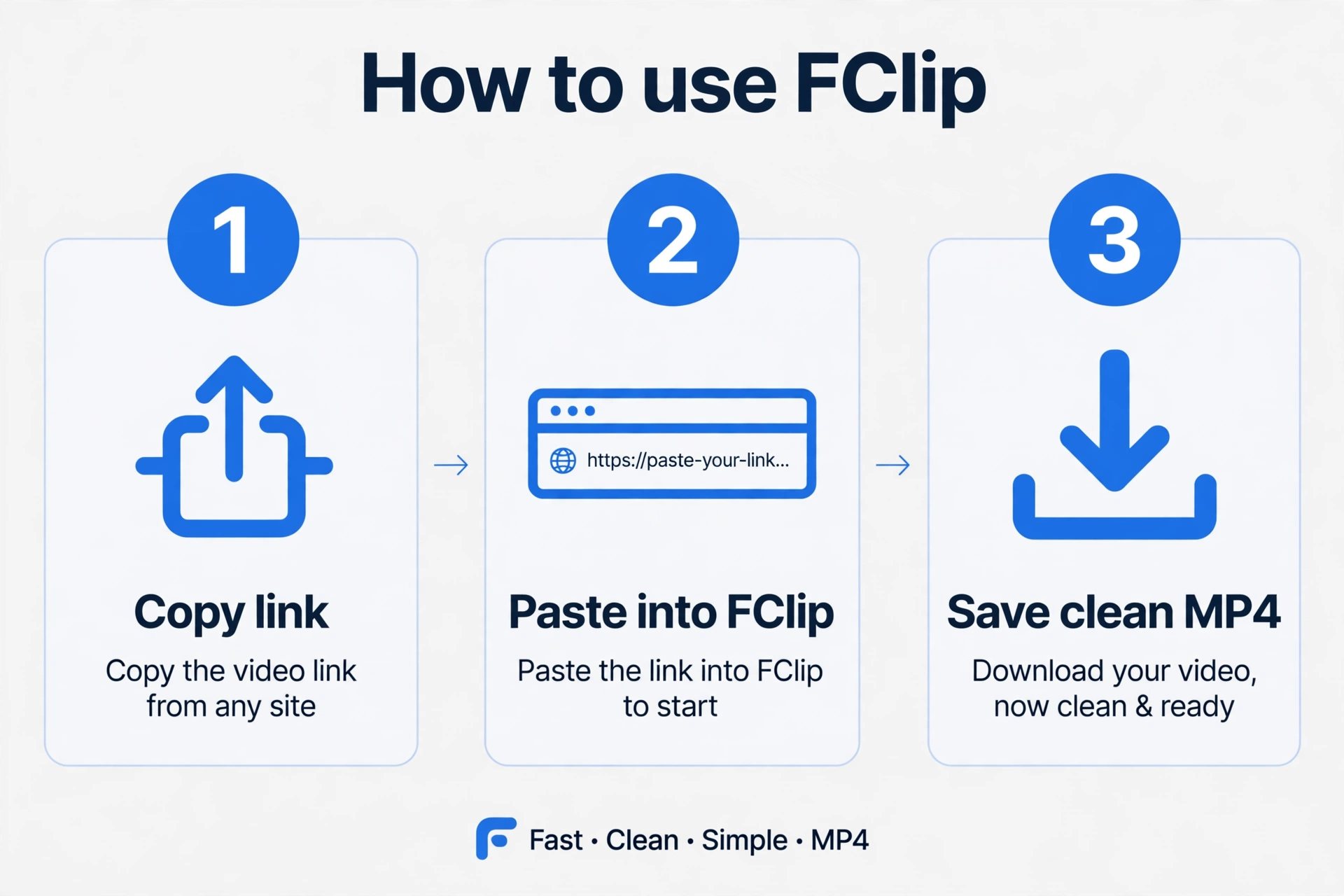
The same three steps work for regular videos and for Reels, on any device.
Step 1: Copy the link. Open the Facebook video or Reel, tap Share, then Copy link. If that option is not available, open the video in your browser and copy the URL from the address bar.
Step 2: Paste it into the downloader. Open the facebook video downloader, paste the link into the box, and tap the download button.
Step 3: Pick your quality and save. FClip shows two options: Normal quality and HD. Tap the one you want, and the MP4 is saved to your device — no watermark added.
That is the whole process. If you want the longer version with screenshots for each browser, our detailed guide on how to download Facebook videos walks through it step by step.
How to Download Facebook Reels Without a Watermark
Reels work just like normal videos, with one small trick that makes the difference between a clean file and a watermarked one.
In the Reels player, tap the Share arrow, then Copy link. Paste that link into the downloader, and you will get the Reel as a normal vertical MP4, with no watermark added by FClip.
The trick is where the link comes from. Copy it from the Reel itself — not from a story that mentions it, not from a shared post that links to it, and not from a third-party site that reposted it. Those give you a different link, and the video you get back may be the re-shared, watermarked copy instead of the original. The Reel’s own Share button always gives you the clean original.
This is also how you download a Reel in HD. After pasting the link, choose the HD option. If the original Reel was uploaded in high quality, you will get a sharp result. If it was uploaded in low quality, HD cannot add detail that was never there. For more on this, see our guide on how to download Facebook videos and Reels in HD quality.
Normal Quality or HD: Which One Should You Choose?
FClip gives you two choices, so the decision is simple.
| What you are doing | Best choice |
| Keeping it to watch later on your phone or laptop | HD |
| Editing it into your own project | HD |
| Watching it on a big TV or monitor | HD |
| Saving on mobile data or low storage | Normal quality |
| Sending it on WhatsApp or another chat app | Normal quality |
| Downloading quickly on a slow connection | Normal quality |
HD looks sharper, especially on a big screen, but the file is larger and takes a little longer to download. Normal quality is lighter and faster, which is perfect for quick sharing.
One thing to remember: a downloader cannot improve the original. If the video was uploaded in low quality, choosing HD will not make it sharper. And neither quality adds a watermark — the only difference between them is the file size and sharpness.
How to Save a Facebook Video to Your Android Gallery
On Android, the downloaded video usually lands in the Downloads folder first. To see it in your gallery:
- Launch Google Photos or your gallery app.
- Look for a folder or album called Download or Downloads.
- Tap the video to play it, or add it to any album you like.
You can also find it from Chrome by tapping the three-dot menu, then Downloads, or through your phone’s file manager app.
Video not showing up in the gallery? It is usually one of three things: the download has not finished yet, the gallery is only showing camera photos, or it just needs a refresh. Close the gallery, reopen it, and check the Downloads album again. If it still is not there, check your file manager — the file may be in a different Downloads folder than the one your gallery watches.
How to Save a Facebook Video to Your iPhone Camera Roll
iPhones handle downloads a bit differently. The file goes to the Files app first, not straight to Photos. To move it:
- Open Files and go to Downloads.
- Tap the video to open it.
- Tap the Share icon, shown as a square with an upward-pointing arrow.
- Tap Save Video.
Now it is in your Photos app next to everything else. You can delete the copy in Files afterwards to free up space.
If you are on an iPhone and want the full walkthrough for downloading Reels specifically, our guide on how to download Facebook Reels on iPhone, Android and PC covers the iPhone steps in detail.
Download Facebook Videos on a PC or Laptop
This one is even easier. Open the Facebook video, copy its URL from the browser’s address bar, paste it into the facebook video downloader, and start the download. The MP4 goes to your Downloads folder, and you can move it anywhere you like — a video folder, an external drive, or straight into your editing software.
On a PC you can also check the file size before you download. HD versions of long videos can be several hundred megabytes, so if you are short on disk space, Normal quality is the safer choice.
Can You Download Facebook Videos Without an App or Account?
Yes. A browser-based downloader works right inside Chrome or Safari, so there is nothing to install, no sign-up, and no need to connect your Facebook account. That is handy if your phone is short on space, or if you do not use Facebook yourself and only want to save a video someone sent you.
There is no FClip app and no browser extension to install — the tool runs entirely in your browser. If you ever see a site claiming to be an “official FClip app” asking you to install something, it is not us.
What About Private Videos?
If a video is visible only to friends, a private group, or a specific list, a public link method will not work, because the downloader has no permission to see it. FClip does not bypass Facebook’s privacy settings, and it never will. Only download videos you are already allowed to watch, and do not try to get around anyone’s privacy settings.
If the video is yours, or you have the owner’s permission, you can still save it: ask the owner to change the post’s audience to Public temporarily, download it, and then change it back. That keeps everything above board.
Facebook Video Download Not Working? Quick Fixes
Most errors come down to a few simple causes. Work through them in order:
- The video is not public. Try opening the link in a private or incognito tab. If it does not play there, the downloader cannot reach it either.
- The link is wrong or cut off. Copy it again, in full. Links pasted from a message app sometimes lose their ending.
- An old link is still on your clipboard. This is very common. Copy the link fresh from the video itself.
- The video was deleted. If the post is gone, there is nothing to download.
- Your browser is acting up. Try another browser or clear the cache.
- The video plays but has no sound. That is a separate issue with its own fix. See our guide on why a downloaded Facebook video has no audio.
- The download finished but the file will not play. Try opening it in VLC, a free player that handles almost any video file.
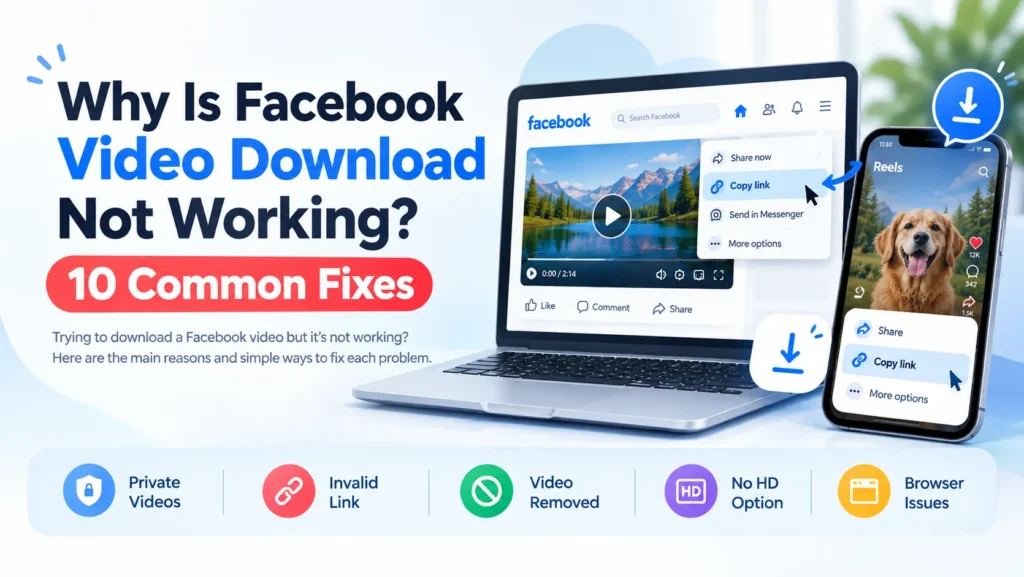
If none of these fix it, we have put together a longer list in our guide on 10 common fixes when Facebook video download is not working.
Is It Okay to Download Facebook Videos?
For personal viewing of public videos, most people do it without any problem. But the video still belongs to whoever posted it. Do not re-upload it as your own, do not use it commercially, and ask for permission before reusing it. If you are not sure, share the original Facebook link instead of the file.
A watermark-free download is not a licence to claim someone else’s work. Saving a video for yourself to watch offline is one thing; posting it on your own page as if you made it is another. Keep the creator’s credit where it belongs.
Conclusion
Saving a Facebook video or Reel without a watermark really comes down to three moves: copy the link from the original post, paste it into a downloader that adds nothing of its own, and choose the quality you want. Once you know where your phone stores the file, moving it to your gallery takes seconds.
Try it at the facebook video downloader, and if something goes wrong, the troubleshooting guide will most likely sort it out. And if the file you saved still has a mark on it, check whether it was in the original video all along — a creator’s own logo is the one watermark no downloader can remove.
FAQs
Does FClip add a watermark to my downloads?
No. FClip does not add any logo or mark of its own to your file. The video you save is the video as it was posted on Facebook.
Can I download Facebook Reels without a watermark?
Yes. Copy the link from the Reel itself using its Share button, paste it into FClip, and choose your quality. The Reel saves as a clean vertical MP4 with no watermark added.
Why does my downloaded Facebook video still have a watermark?
Most likely the watermark was already in the video before you downloaded it — either the creator burned their logo into it, or the link you used came from a re-shared copy that another app had already stamped. Try copying the link from the original post and downloading it again.
Can I download Facebook videos in HD without a watermark?
Yes. After you paste the link, choose the HD option. If the original video was uploaded in high quality, you will get a sharp, watermark-free result. If it was uploaded in low quality, HD cannot add detail that is not there.
Do I need to log in to Facebook?
No. You only need the video link. FClip works in your browser with no account and no Facebook login.
Will it work on iPhone?
Yes. Use Safari or Chrome, then save the file from the Files app to Photos with the Share button. The steps are in the iPhone section above.
Where do downloaded videos go?
Android: usually the Downloads folder, then your gallery’s Downloads album. iPhone: the Files app, then move it to Photos. PC: your browser’s Downloads folder.
Is there a download limit?
FClip does not currently advertise a fixed daily download limit. If you download a lot in a short time and something fails, wait a few minutes and try again.
Updated for November 2026: Saving Videos from Groups, Pages and More
Updated 17 November 2026. The steps above were re-checked today and still work. Two new guides may help you further. If you want to save several videos at once, our guide to downloading multiple Facebook videos at once explains the honest workflow — FClip downloads one video per link, so collect the links first and work through them in order. And if the video you want is in a group or on a page, our guide to downloading Facebook videos from groups and pages covers public groups and pages only, and explains why private-group videos cannot be downloaded. For the sharpest result, also see our guide to downloading Facebook videos in HD quality.
On your phone, see how to download Facebook videos on Android or on iPhone.
