
Quick Answer
Converting a Facebook video to MP4 is simpler than most people expect, because there is usually nothing to convert. When you download a public Facebook video with a facebook video downloader like FClip, the file already arrives as an MP4 — ready to play on any phone, computer or TV, with no extra software and no conversion step. Copy the video link from Facebook, paste it into FClip, pick your quality, and save the MP4.
If you already have a Facebook video saved in a different format — a MOV file from an iPhone screen recording, or a WEBM file saved from a browser — that is the only time you need a real converter. The free options for that are covered below, and they take about a minute.
What Is MP4, and Why Is It the Format You Want?
MP4 is the standard video format on the internet. Almost every device and app made in the last ten years plays it without any extra software: iPhone and Android phones, Windows and Mac computers, smart TVs, WhatsApp, Telegram, YouTube, and every video editor worth using.
That is why it matters for Facebook videos. Facebook stores its videos in MP4 already, so a download tool that gives you the original file is giving you an MP4. Other formats cause problems: MOV files are large and do not play well on Android or Windows, WEBM files do not open in the iPhone Photos app, and old formats like AVI or FLV barely work anywhere modern.
One honest limit: FClip downloads videos as MP4 only. It does not convert videos to MP3 audio, and it has no audio-extraction feature. If you need just the sound from a video, you need a separate audio tool — FClip is a video downloader, and it does one job well.
Method 1: Download the Facebook Video Directly as MP4
This is the method almost everyone needs. You are not converting anything — you are downloading the video in the MP4 format it already has.
- Open Facebook and find the video you want.
- Tap the three dots on the video and choose Copy link. On a computer, open the video and copy the address from the browser bar.
- Open FClip in your browser and paste the link into the download box.
- Tap the download button and wait a few seconds while the video is fetched.
- Choose the quality you want — highest available is usually best — and save the file.
The file that lands on your device is an MP4. No conversion, no renaming, no extra app. If you want the full step-by-step for each device, our guide on how to download Facebook videos covers it in detail.
On iPhone
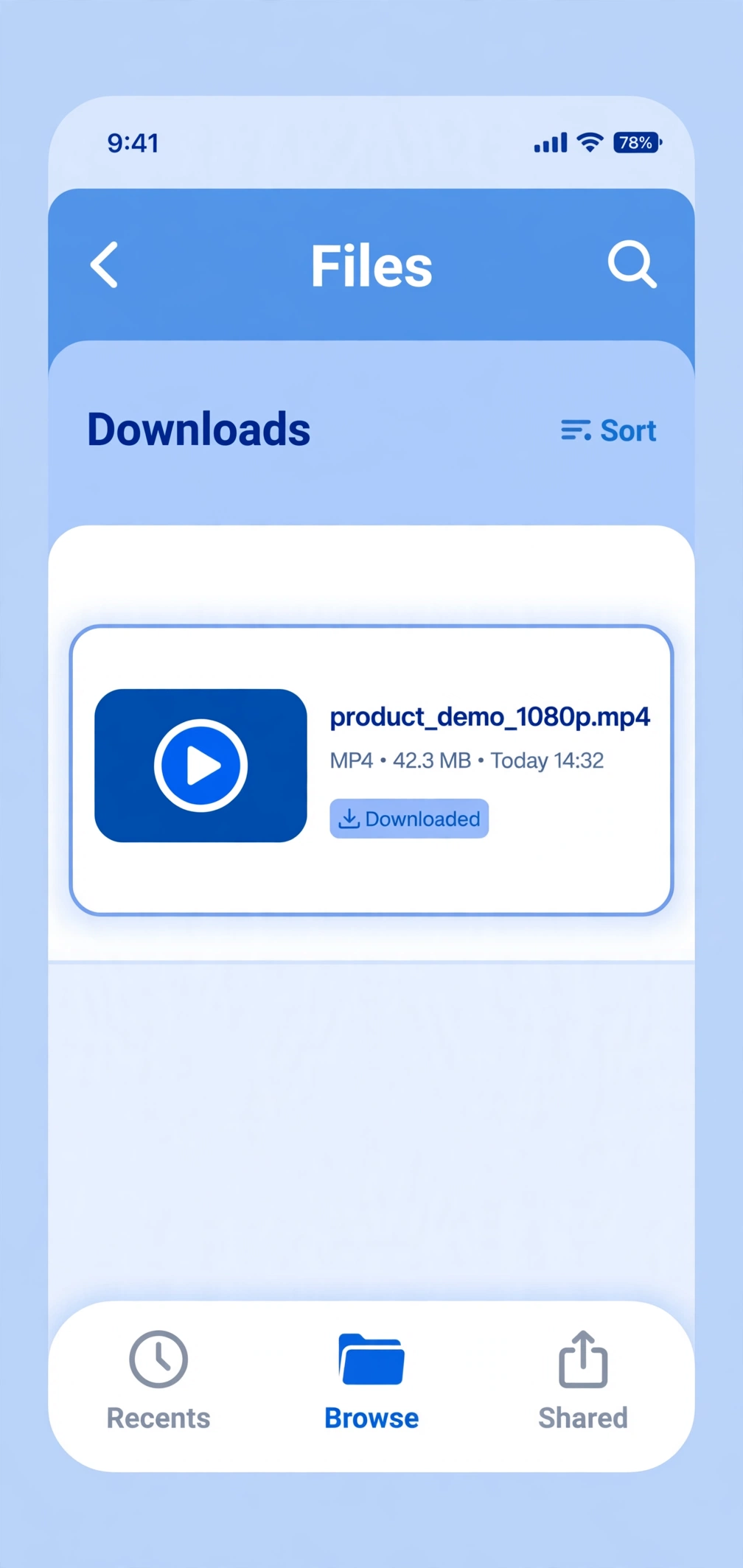
Safari sends downloaded videos to the Files app first, not to Photos. After the download finishes, open Files → Downloads, tap the MP4 file, tap Share, and choose Save Video. The video is now in your Photos app and camera roll. The MP4 format is exactly why this handoff works — the Photos app accepts MP4 files directly.
On Android
Chrome saves the MP4 straight to your Downloads folder, and most phones also show it in the Gallery under a Downloads album. If you cannot see it in the gallery, open Files → Downloads. MP4 is Android’s native video format, so the file plays in any gallery or video player app without converting.
On PC and Mac
The MP4 saves to your Downloads folder. Double-click it to play in your default player, or drag it into any folder, editor or messaging app. On Windows it opens in Media Player; on Mac it opens in QuickTime. Both play MP4 natively.
Method 2: Convert a Video You Already Have to MP4
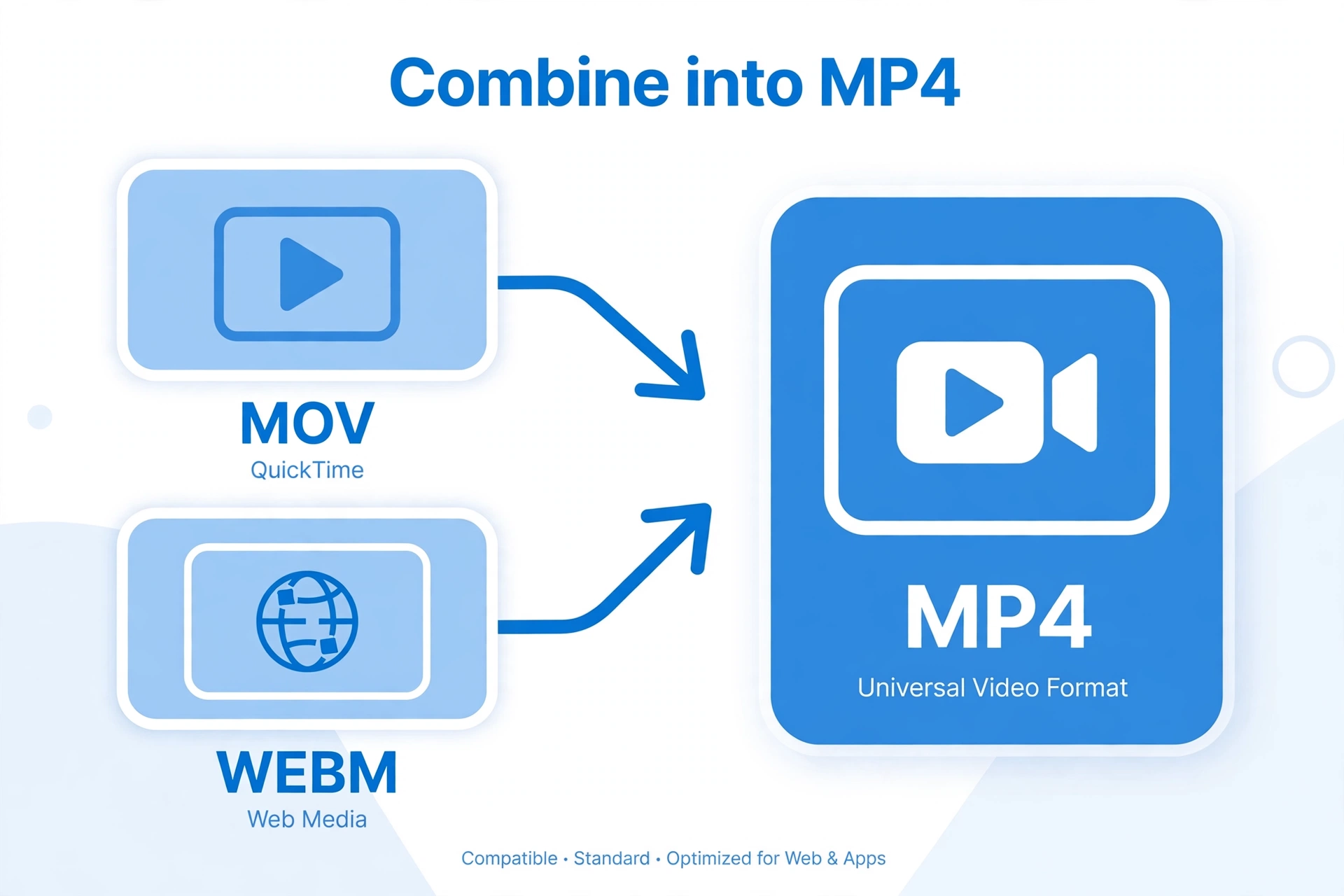
Sometimes the file you have is not an MP4. The two common cases are a screen recording saved as MOV on an iPhone or Mac, and a video saved as WEBM from a browser extension or a different downloader. Both convert to MP4 easily, and the free tools below do it without a watermark or a signup.
HandBrake (Free, Windows, Mac and Linux)
HandBrake is a free, open-source video converter that has been around for years and is safe to install from its official site.
- Download and install HandBrake from handbrake.fr.
- Open it and drag your video file into the window.
- Under Format, make sure MP4 is selected.
- Under Video, keep the default H.264 codec — it is the standard for MP4.
- Choose where to save the file and click Start Encode.
A typical phone video converts in under a minute. The quality stays the same as the original, because MP4 with H.264 is a lossless container change for most files — you are repackaging the video, not degrading it.
VLC Media Player (Free, Every Platform)
VLC is a media player that also converts files, and most people already have it installed.
- Open VLC, go to Media → Convert / Save.
- Click Add, choose your video file, then click Convert / Save.
- Under Profile, pick Video – H.264 + MP3 (MP4).
- Choose a destination file name ending in .mp4 and click Start.
VLC is the quickest option if you only convert a file occasionally, because there is nothing new to install.
CloudConvert (Free, In the Browser)
If you do not want to install anything, CloudConvert converts files in the browser: upload the video, choose MP4 as the output, and download the result. The free plan covers a few conversions a day, which is enough for occasional use. Only use it for videos you are comfortable uploading to a third-party site — never for private or sensitive clips.
MP4 vs Other Video Formats
| Format | Plays on | File size | Best for |
|---|---|---|---|
| MP4 | Everything — phones, computers, TVs, editors | Small for the quality | Sharing, saving, editing |
| MOV | Apple devices mainly | Larger | iPhone screen recordings (convert to MP4 to share) |
| WEBM | Browsers, some Android apps | Small | Web playback (does not open in iPhone Photos) |
| AVI | Windows mostly | Very large | Old files (convert to MP4 to use them) |
The pattern is simple: if a video is not an MP4 and you want to watch it, share it or edit it anywhere, convert it to MP4. It is the one format that never needs explaining.
Facebook Video Quality and MP4
When FClip downloads a video, the MP4 you get is the original file Facebook served — the quality is whatever the uploader posted, up to 1080p or higher for HD uploads. Picking the highest quality option gives you the best version available. A low-resolution original cannot be made sharper by converting it; conversion changes the container, not the picture.
For the full picture on quality options — 360p, 720p, 1080p and 4K — see our HD download guide. And if you save Reels or Stories, they download as MP4 too: the Reels guide and the Stories guide use the same method.
Why a Facebook Video Won’t Download as MP4 (and What to Do)
| Problem | What it means | What to do |
|---|---|---|
| The video is private | The post is friends-only or in a private group | No tool can download a private video. FClip only works with public videos. |
| The link is incomplete | You copied a profile or page link instead of the video link | Open the video itself, tap the three dots, and copy the link again. |
| The file saves as something else | Your browser or another app renamed it, or the file came from a different tool | Check the file extension. If it is a WEBM or MOV, convert it with HandBrake or VLC. |
| The download will not start | A browser or connection issue | Refresh the page, try another browser, and check your connection. Our 10 fixes guide covers this step by step. |
| The video has no sound | The original was muted, or the download was interrupted | Check the video on Facebook first. If it plays with sound there, re-download it — see our no-sound fixes. |
And the standing rule for any downloader site: never enter your Facebook password. A legitimate tool never asks for it.
FAQs
Can I convert a Facebook video to MP4?
You usually do not need to convert anything. Download the public Facebook video with FClip and the file is already an MP4. If you already have the video in another format, like MOV or WEBM, convert it free with HandBrake or VLC.
Can I convert Facebook video to MP4 on iPhone?
Yes. Download the video with FClip in Safari and it saves as an MP4 in the Files app, then move it to Photos with Share → Save Video. No converter app is needed.
Can I convert Facebook video to MP4 on Android?
Yes. Download it with FClip in Chrome and it saves as an MP4 in your Downloads folder or gallery. Android plays MP4 natively, so no conversion step is needed.
Is converting Facebook video to MP4 free?
Yes. Downloading as MP4 with FClip is free, and converting an existing file with HandBrake, VLC or CloudConvert’s free plan costs nothing. Avoid any site that charges for a basic MP4 conversion.
Can FClip convert Facebook video to MP3?
No. FClip is a video downloader — it saves videos as MP4 files with their sound included. It does not extract audio or convert videos to MP3. For audio-only needs, use a separate audio tool.
Can I convert a private Facebook video to MP4?
No tool can download a private Facebook video, so there is nothing to convert. FClip only works with public videos. If the video is yours or a friend’s, ask the owner to share the file with you directly.
Does converting a video to MP4 lose quality?
Converting between MP4 and another modern format at the same resolution keeps the quality effectively the same. What conversion cannot do is improve a low-quality original — the result is only as good as the file you started with.
Conclusion
For most people, “convert Facebook video to MP4” has a one-step answer: download the video with FClip and it is already an MP4. No converter, no app, no login, no watermark. The file plays everywhere, shares anywhere, and edits in any app.
Only reach for a real converter when the file you already have is in another format — MOV from a screen recording, WEBM from a browser save — and for that, HandBrake or VLC will do it free in about a minute. Keep the two honest limits in mind: only public videos can be downloaded, and FClip downloads video as MP4 — it does not do MP3 audio. Everything else on Facebook — Reels, Stories, HD videos, regular posts — downloads the same way, and our full guides cover each one step by step.
Updated for November 2026: More Download Guides
Updated 17 November 2026. The methods above were re-checked today and still work — FClip still downloads public Facebook videos directly as MP4, with no conversion needed. Two new guides may help you further. If you want to save several videos at once, our guide to downloading multiple Facebook videos at once shows the honest workflow — FClip downloads one video per link, so collect the links first and work through them in order. And if the video you want is in a group or on a page, our guide to downloading Facebook videos from groups and pages covers public groups and pages only, and explains why private-group videos cannot be downloaded. For the sharpest MP4 files, see our guide to downloading Facebook videos in HD quality.
On your phone, see how to download Facebook videos on Android or on iPhone.
