
How to Download Facebook Videos and Reels Without a Watermark
You find a great Reel and want a clean copy of it, with no logo or username stuck on top. It can be frustrating when the version you save still shows a logo or username over the video.
You don’t have to live with that. A free Facebook downloader lets you save videos and Reels as MP4 files with just a few clicks. You can use it directly in your browser without installing another app or creating an account. This guide shows how to do it on Android, iPhone, and PC, and what to try when something goes wrong.
Why do some saved Facebook Reels have a watermark?
Reels that get re-shared across apps often carry a watermark or a creator’s name on top of the video. Sometimes it’s added by the platform or app that exported the clip, and sometimes the creator burned it into the video before posting.
Regular Facebook videos are different. Inside the app, you can usually bookmark them, but that doesn’t give you a file on your phone. If you want to watch the video offline, you’ll need to save it using its direct link.
Can you really download a Facebook video without a watermark?
Yes. If the video is public, you can save it by providing its link to a downloader that supports the available video stream and MP4 format. FClip doesn’t add any logo or mark of its own on top.
One honest note: if the creator put their own logo or text into the video before uploading, that stays. It’s part of the video itself, and no downloader can remove it. What you avoid is any extra overlay added by a re-share or export, but a logo already inside the original video will stay.
What you need before you start
- The video link. You’ll copy it from the Share menu.
- A browser. You can use it with Chrome, Safari, Edge, or Firefox on either your phone or computer.
- A public video. If only friends or group members can see it, a normal downloader can’t reach it.
- Some free storage. HD files are bigger, so if your phone is nearly full, pick Normal quality.
That’s all. No extra app.
How to download Facebook videos and Reels without watermark (step by step)
The same steps work for both videos and Reels.
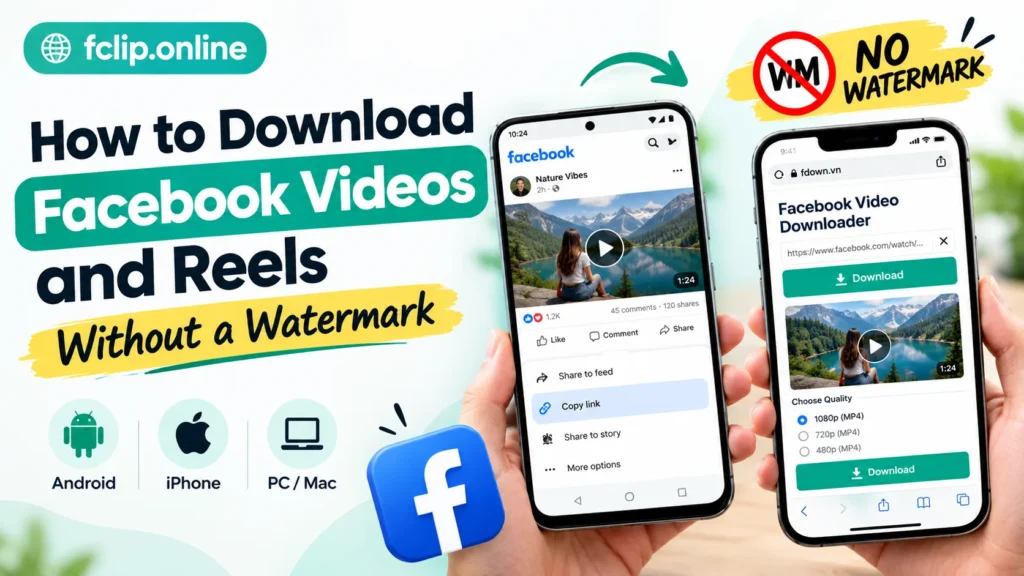
Step 1: Copy the link. Open the Facebook video or Reel, choose Share, and tap Copy link. If that option isn’t available, open it in your browser and copy the URL from the address bar.
Step 2: Paste it into the downloader. Open FClip, paste the link into the box, and tap the download button.
Step 3: Pick your quality and save. FClip shows two options: Normal quality and HD. Tap the one you want, and the MP4 is saved to your device, ready to play.
Want a longer walkthrough for each browser? Here’s our detailed guide on how to download Facebook videos.
How to download Facebook Reels without watermark
Reels work just like normal videos, with one small trick. In the Reels player, tap the Share arrow, then Copy link. Paste that link into the downloader, and you’ll get the Reel as a normal vertical MP4, with no watermark added by FClip.
A tip that saves a lot of trouble: copy the link from the Reel itself, not from a story or a shared post that only mentions it. Those give you a different link, and the downloader won’t find the video.
Normal quality or HD: which one should you choose?
FClip gives you two choices, so the decision is easy.
| What you’re doing | Best choice |
| Keeping it to watch later on your phone or laptop | HD |
| Editing it into your own project | HD |
| Saving on mobile data or low storage | Normal quality |
| Sending it on WhatsApp or another chat app | Normal quality |
HD looks sharper, especially on a big screen, but the file is larger and takes a little longer to download. Normal quality is lighter and faster, which is perfect for quick sharing.
Remember that a downloader can’t improve the original. If the video was uploaded in low quality, choosing HD won’t make it sharper.
How to save a Facebook video to your Android gallery
On Android devices, you’ll generally find the downloaded video in the Downloads folder. To see it in your gallery:
- Launch Google Photos or the gallery app on your phone.
- Look for a folder or album called Download or Downloads.
- Tap the video to play it, or add it to any album you like.
You can also access it from Chrome by tapping the three-dot menu, then Downloads, or through your file manager app.
Video not showing up in the gallery? It’s usually one of three things: the download hasn’t finished, the gallery is only showing camera photos, or it just needs a refresh. Close the gallery, reopen it, and check the Downloads album.
How to save a Facebook video to your iPhone camera roll
iPhones handle downloads a bit differently. The file goes to the Files app first, not straight to Photos. To move it:
- Open Files and go to Downloads.
- Tap the video to open it.
- Tap the Share icon, shown as a square with an upward-pointing arrow.
- Tap Save Video.
Now it’s in your Photos app next to everything else. You can delete the copy in Files afterwards to free up space.
Download Facebook Videos on a PC or Laptop
This one is even easier. Open the Facebook video, copy its URL from the browser’s address bar, paste it into FClip, and start the download. The MP4 goes to your Downloads folder, and you can move it anywhere you like.
Can You Download Facebook Videos Without an App or Account?
Yes. A browser-based downloader works right inside Chrome or Safari, so there’s nothing to install, no sign-up, and no need to connect your Facebook account. That’s handy if your phone is short on space, or if you don’t use Facebook and only want to save a video someone sent you.
What about private videos?
If a video is visible only to friends, a private group, or a specific list, a public link method won’t work because the downloader has no permission to see it. Only download videos you’re already allowed to watch, and don’t try to get around anyone’s privacy settings.
Facebook video download not working? Quick fixes
Most errors come down to a few simple causes:
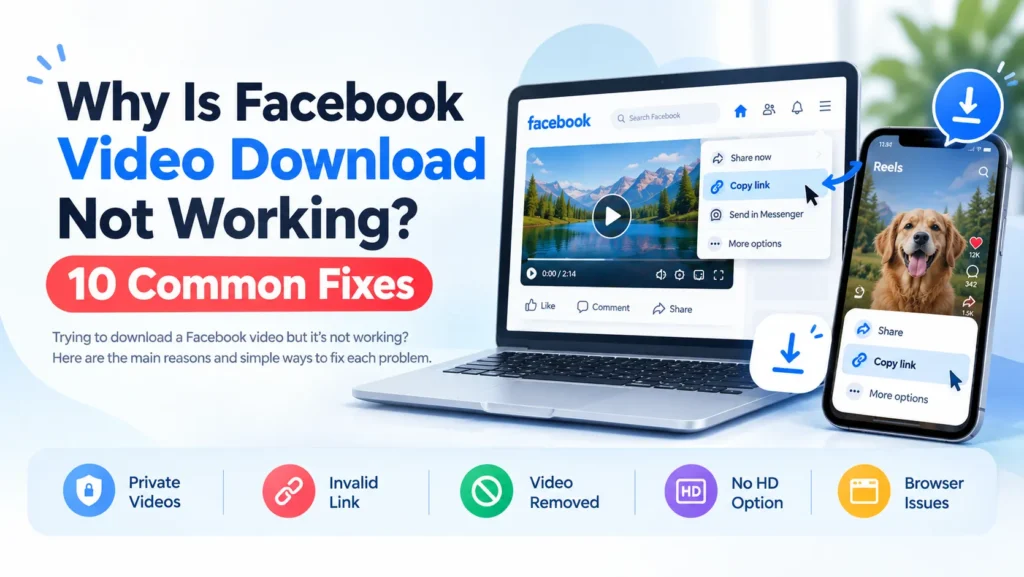
- The video isn’t public. Try opening the link in a private or incognito tab. If it doesn’t play, the downloader can’t reach it either.
- The link is wrong or cut off. Copy it again, in full.
- An old link is still on your clipboard. This is very common. Copy the link fresh.
- The video was deleted. If the post is gone, there’s nothing to download.
- Your browser is acting up. Try another browser or clear the cache.
- The video plays but has no sound. That’s a separate issue with its own fix. See why a Facebook video downloader has no audio.
We’ve put together a longer list here: 10 common fixes when Facebook video download isn’t working.
Is it okay to download Facebook videos?
For personal viewing of public videos, most people do it without any problem. But the video still belongs to whoever posted it. Don’t re-upload it as your own, don’t use it commercially, and ask for permission before reusing it. If you’re not sure, share the original Facebook link instead.
Conclusion
Saving a Facebook video or Reel really comes down to three moves: copy the link, paste it, download. Once you know where your phone stores the file, moving it to your gallery takes seconds. Try it at FClip, and if something goes wrong, the troubleshooting guide will most likely sort it out.
FAQs
Does FClip add a watermark to my downloads?
No. FClip doesn’t add any logo or mark of its own to your file.
Can I download Facebook Reels in HD?
Yes. After you paste the link, choose the HD option. If the original Reel was uploaded in high quality, you’ll get a sharp result. If it was uploaded in low quality, HD can’t add detail that isn’t there.
Do I need to log in to Facebook?
No. You only need the video link.
Will it work on iPhone?
Yes. Use Safari or Chrome, then save the file from the Files app to Photos.
Where do downloaded videos go?
Android: usually the Downloads folder. iPhone: the Files app. PC: your browser’s Downloads folder.
Is there a download limit?
FClip does not currently advertise a fixed daily download limit. If you download a lot in a short time and something fails, wait a few minutes and try again.