
Want to save a whole set of Facebook videos — a creator’s series, the clips from a family event, or every tutorial in a course — without downloading them one by one? You are not alone. Bulk downloading is one of the most searched Facebook topics of 2026, and it is also one of the most misunderstood. This guide explains honestly what is possible, what is not, and the fastest reliable workflow for saving several Facebook videos with FClip.
The honest answer first: the FClip tool downloads one video per link. There is no button on FClip that takes a whole page, profile or playlist and saves every video on it in a single click. Any site that promises one-click bulk downloading of Facebook videos is either exaggerating or asking you to install something risky. The good news is that downloading several videos is still quick once you have a simple system: collect the links, work through them in order, and keep the files organised as you go. This guide shows you exactly how.
What “Bulk Download” Really Means
When people say “bulk download”, they usually mean one of three different things. Knowing which one you mean matters, because the method is different for each.
- Several individual videos: five, ten or twenty separate videos you have found while scrolling. This is the most common case, and the workflow in this guide handles it well.
- All videos from one page or group: for example, every video a public page has posted. There is no official way to download these in one click, but you can work through the page’s video list link by link.
- Your own videos: videos you uploaded yourself. Facebook lets you download your own content through its settings, which is a different process covered below.
What you cannot do — with FClip or with any honest downloader — is download videos from a private or closed group, videos shared with “Friends only” that you cannot view, or videos from an account that has blocked you. A downloader can only fetch a video that is publicly viewable. If Facebook will not show you the video, no tool can download it for you. Our companion guide to downloading Facebook videos from groups and pages explains that limit in detail.
Before You Start: Collect Your Links
The single biggest time-saver is to collect every video link before you download anything. Jumping back and forth between Facebook and the downloader is slow and error-prone. Instead, spend five minutes gathering links first.
- Open Facebook and find your first video. Tap the three dots on the post (or right-click the video on a computer) and choose “Copy link”.
- Paste the link into a note. Use the Notes app on your phone, a Google Doc, or a plain text file on your computer. One link per line.
- Give each link a short label. For example: “Mum’s birthday — cake cutting”, “Part 3 — camera settings”, “Gym routine — legs”. Labels save you from opening every file later to work out what it is.
- Repeat for every video you want. Work through the page, group or feed in order so you do not miss one or download the same video twice.
- Check each link as you collect it. A link that opens the video when you tap it is a good link. A link that opens a login screen or a “content not available” page will not download — remove it from your list.
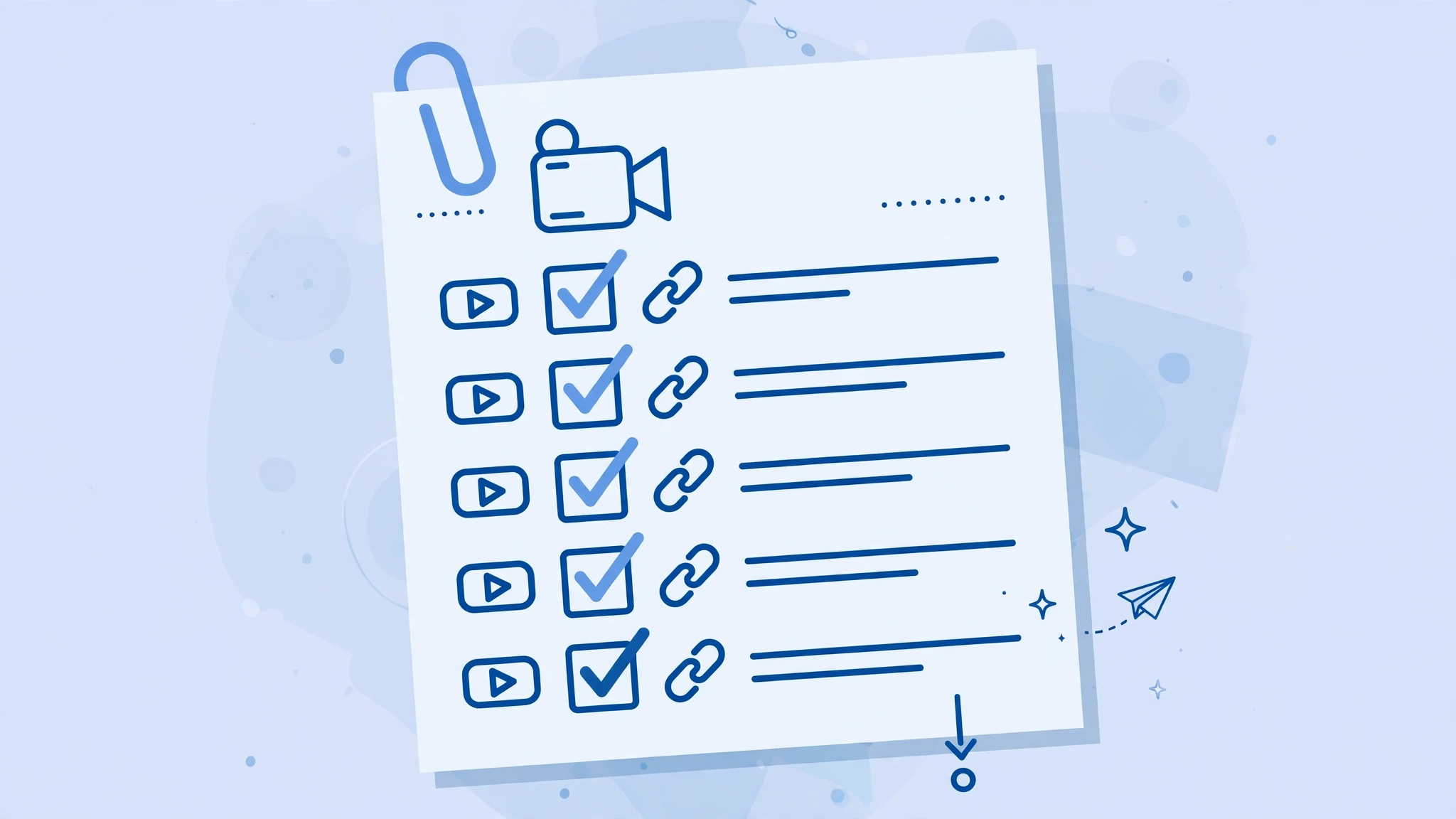
This list is your download queue. If you are saving videos from a public page, you can also open the page’s Videos tab and work down the list in order, which is much faster than finding the same videos in your feed. If you need help finding a video’s link in the first place, our guide to downloading Facebook Reels on iPhone, Android and PC walks through the copy-link step on every device.
Method 1: Download Each Video with FClip (Recommended)
This is the method we recommend for most people. It uses no extra software, works on iPhone, Android and PC, and keeps the video in its original quality. FClip handles one video per link, so you simply repeat the same short process for each link in your queue.
Step 1: Copy the video link
Take the first link from your queue. If you have not collected links yet, open the video on Facebook, tap the three dots on the post, and choose “Copy link”. On a computer, you can copy the address from the browser’s address bar while the video is open.
Step 2: Paste the link into FClip
Open FClip in your browser, paste the link into the download box, and tap Download. The tool will fetch the video and show you the available quality options.
Step 3: Choose Normal or HD quality
Pick the quality that suits you. HD gives you the sharpest picture and is the best choice if you plan to watch on a television or edit the clip later. Normal quality downloads faster and takes up less storage, which is sensible for a long list of videos. Our guide to downloading Facebook videos in HD quality explains the difference and when each option makes sense.
Step 4: Save the file and rename it straight away
When the download finishes, rename the file using the label from your queue before you move on to the next link. This takes five seconds and saves a lot of confusion later. A file called “birthday-cake-cutting.mp4” is useful; a file called “video-847291.mp4” is not.
Step 5: Move to the next link
Tick the link off your list and repeat steps 1 to 4. A steady rhythm — copy, paste, download, rename — will get you through ten videos in a few minutes. If a download fails, do not worry: check the link again, make sure the video is still public, and try once more. Our troubleshooting guide, Facebook video download not working? 10 common fixes, covers the usual causes.
Method 2: Browser Extensions as an Alternative
Some people prefer a browser extension that adds a download button to Facebook itself. Extensions can be convenient when you are saving many videos from the same page, because you do not have to copy and paste each link. But they come with real trade-offs, and you should go in with your eyes open.
- Extensions need broad permissions. A video downloader extension typically asks to read data on every website you visit. Only install extensions from the official Chrome Web Store or Firefox Add-ons site, with many reviews and a clear privacy policy.
- They break often. Facebook changes its video player regularly, and extensions stop working until their developer updates them. A web tool like FClip is updated centrally, so you do not have to wait for an extension update.
- Quality varies. Many extensions only save the lower-quality version of a video. If quality matters, downloading through FClip with the HD option is usually the better choice — see our guide to downloading Facebook videos in HD quality.
- They do not bypass privacy either. An extension cannot download a private-group video any more than a website can. If a video is not visible to you, no extension will fetch it.
Our advice: try the FClip workflow first. It needs no installation, works on every device including your phone, and leaves nothing running in your browser. Use an extension only if you download videos from Facebook every day and you are comfortable with the permissions it asks for.
Method 3: Downloading Your Own Facebook Videos in Bulk
If the videos are yours — ones you uploaded to your own profile or page — Facebook offers a built-in way to get them back. This is the only genuine bulk option, because you are downloading your own content from your own account.
- On a computer, open Facebook Settings, then “Your Facebook information”.
- Choose “Download your information”.
- Select the date range, format and media quality, and tick “Videos” (and “Posts” if you want the captions too).
- Request the download. Facebook prepares a file and notifies you when it is ready — this can take minutes or hours depending on how much you have uploaded.
- Download the archive and unzip it. Your videos will be inside, organised by date.
This method only covers videos you uploaded yourself, and the files may be compressed to a lower quality than the originals. For anything someone else posted — even a public video you want to keep — you need the link-by-link method above. Note also that Facebook does not offer an MP3 audio download; FClip likewise downloads video files only. If a downloaded video needs to be in MP4 format, our guide to converting Facebook video to MP4 explains what to do.
Keeping a Large Download Organised
Downloading ten videos is easy. Finding the one you want three weeks later is the hard part. A little organisation now pays off every time.
- One folder per project. Create a folder for each purpose — “Wedding videos”, “Guitar lessons”, “Client clips” — and save each batch straight into its folder instead of leaving everything in Downloads.
- Use clear file names. Start each name with the date or a number so files sort in order: “01-intro.mp4”, “02-setup.mp4”, “03-demo.mp4”.
- Keep your link list. Save the note with your video links alongside the files. If a file is ever lost or corrupted, you can re-download it from the same link in seconds.
- Check the sound before you file it away. A small number of downloaded videos have no audio, usually because of the original upload or a browser quirk. Our guide to fixing a downloaded Facebook video with no sound shows six quick fixes.
- Back up anything important. Phone storage fails and laptops get replaced. Copy videos you cannot afford to lose to a second location, such as an external drive or cloud storage.
- Respect the creator. Only download videos for personal viewing, and never re-upload someone else’s video as your own. Many creators are happy for you to save a copy to watch offline, but reposting their work without permission is not fair and can get your account in trouble.
Common Problems When Downloading Several Videos
A link that worked yesterday fails today. The video may have been deleted, made private, or the page may have changed its settings. Re-open the link in Facebook; if the video no longer plays there, it cannot be downloaded.
Downloads keep stopping halfway. This is usually an unstable connection. Try one video at a time rather than starting several at once, and switch from mobile data to Wi-Fi for large HD files.
Some videos download without a watermark and some do not. FClip saves the video as Facebook serves it, without adding any watermark of its own. If you want the cleanest possible copy, see our guide to downloading Facebook videos without a watermark.
Stories disappear before you save them. Stories only last 24 hours, so add them to your queue as soon as you see them. Our guide to downloading Facebook Stories on iPhone, Android and PC covers the timing and the steps.
Frequently Asked Questions
Can FClip download a whole Facebook page’s videos at once? No. FClip downloads one video per link. Use the queue method in this guide: collect the links from the page’s Videos tab and work through them one by one.
Is there a limit on how many videos I can download? FClip does not impose a daily limit on the number of videos you download, but going through a long list still takes time — roughly a minute per video including renaming. For very long lists, split the work into sessions.
Can I download multiple Facebook videos on my iPhone? Yes. The same link-by-link workflow works in Safari or Chrome on iPhone. The only difference is that downloaded files go to the Files app, so remember to rename them there.
Does bulk downloading work for Reels? Yes — Reels are videos like any other. Copy each Reel’s link and download it the same way. Our Reels download guide has the device-by-device steps.
The Bottom Line
There is no magic one-click bulk downloader for Facebook, and anyone selling you one is not being straight with you. What does work, every day, is a simple system: collect the links, download each video with FClip in Normal or HD quality, rename it immediately, and file it in the right folder. It takes a few minutes for a handful of videos, and it works on iPhone, Android and PC without installing anything. Start with your most important videos first, keep your link list safe, and enjoy your collection offline. Updated 17 November 2026.
On your phone, see how to download Facebook videos on Android or on iPhone.
