
Want to download Facebook videos on iPhone so you can watch them offline, share them later, or keep a copy of a clip you love? Facebook does not give you a download button for other people’s videos, and the app’s own Save option only bookmarks the post inside Facebook — it does not put a file on your phone.
The good news is that you do not need to install anything to save Facebook videos to your iPhone. With a free facebook video downloader like FClip, the whole thing takes less than a minute in Safari. Copy the link, paste it into FClip, choose your quality, and download. No account, no login, and no App Store download is needed.
This guide shows you exactly how to download Facebook videos on iPhone, how to save them to your Camera Roll, how to download Facebook Reels on iPhone the same way, and what to do if a download does not work first time.
How to Download Facebook Videos on iPhone
You can download Facebook videos on iPhone using Safari and FClip. It works on any recent iPhone running iOS 13 or later, because that is when Safari gained proper file downloads. Here is the method, step by step.
Step 1: Copy the video link from Facebook
Open the Facebook app and find the video you want to save. Tap Share underneath the post, then tap Copy link. If you do not see Copy link straight away, scroll along the row of options or tap More options.
For a Reel, open the Reel first, then tap the share arrow on the right-hand side and choose Copy link. The link is now on your clipboard, ready to paste.
A quick tip: copy the link from the video itself, not from a shared repost of it. If a friend has shared someone else’s video, open the original post — tap the video or the name of the page or person who first posted it — and copy the link from there, so you get the right video.
You can also copy the link from Facebook in Safari instead of the app. Open the video in Safari, tap the address bar, and copy the address. Either way works.
Step 2: Open FClip in Safari
Open Safari on your iPhone and go to fclip.online. FClip is a free online Facebook video downloader: you paste the video link, fetch it, choose a quality, and download. There is no FClip iOS app, and you do not need one — the tool runs entirely in Safari, so there is nothing to install from the App Store.
Step 3: Paste the link and fetch the video
Tap the download box on the FClip homepage and paste the link you copied. Then tap the download or fetch button. FClip will process the link and show you the download options for that video.
This only works for public Facebook videos. FClip does not download private videos, and it cannot fetch a video that is restricted to friends only or hidden behind a login. If a video is private, the tool will not be able to find it — that is by design, to respect people’s privacy.
Step 4: Choose Normal or HD and download
FClip offers two quality options, both with sound: Normal (SD) and HD (720p). Pick the one you want and tap its download button. HD gives you a sharper picture and a larger file; Normal is smaller and quicker to download, which is handy if you are on mobile data or short on storage.
Do not expect a 1080p or 4K option — Facebook only supplies SD and HD files with sound for each video, so those are the two genuine qualities FClip can offer. What you download keeps its original quality, and FClip adds no watermark to the video.
When Safari asks where to save the file, or simply starts the download, let it finish. You can watch its progress by tapping the download arrow next to the address bar in Safari.
Step 5: Find the video in the Files app
Here is the step most people miss: a Safari download does not go straight into Photos. It goes to the Downloads folder in the Files app.
Open Files, tap Browse, then open Downloads — under iCloud Drive or On My iPhone, depending on your Safari setting. If you are not sure which one, check both. You can change the location any time in Settings > Apps > Safari > Downloads. Your downloaded video will be sitting there as an MP4 file, ready to play.
How to Save the Downloaded Video to Camera Roll
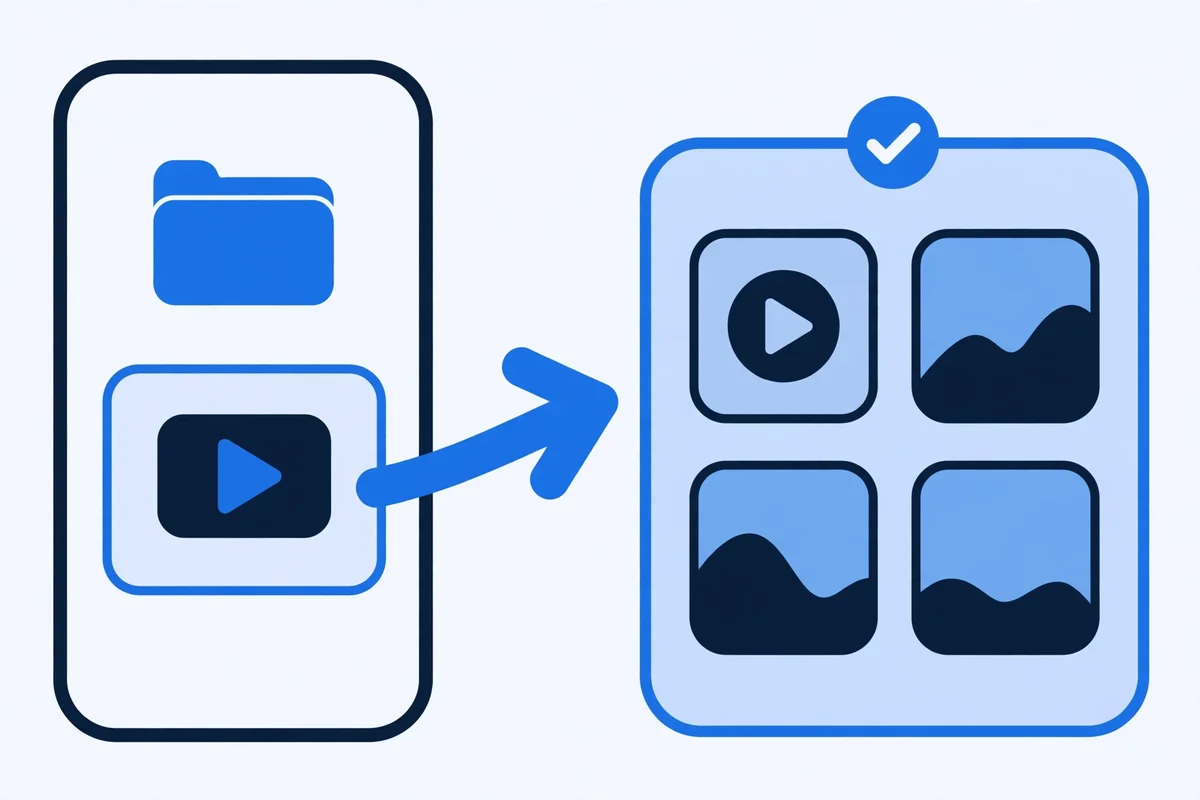
Once the video is in Files, moving it to your Camera Roll takes a few seconds. This is the step that makes it appear in Photos, where you can watch it, edit it, or share it like any other video.
- Open the Files app and go to Browse > Downloads.
- Tap the video to check that it plays properly.
- Tap the Share icon at the bottom of the screen.
- Tap Save Video.
That is it. The video now appears in Photos > Recents, in your Camera Roll, alongside your other videos. You can delete the copy in Files afterwards if you want to free up space, or keep it there as a backup.
If you do not see the Save Video option, double-check that you are sharing the actual video file from Files, not a thumbnail or a web link. Go back to Files, make sure the file ends in .mp4 and plays when you tap it, then try the Share sheet again.
How to Download Facebook Reels on iPhone
Downloading Facebook Reels on iPhone works in exactly the same way — there is no separate method to learn.
- Open the Reel in the Facebook app and tap the share arrow.
- Tap Copy link.
- Open Safari, go to FClip, and paste the link.
- Fetch the video, choose Normal or HD, and download.
- Open Files, find the video in Downloads, and use Share > Save Video to move it to your Camera Roll.
For a fuller walkthrough of Reels specifically, including Reels on Android and PC, see our guide on how to download Facebook Reels on iPhone, Android and PC. And if you want the best possible picture quality, read our HD guide to downloading Facebook videos and Reels in HD quality.
Download Not Working on iPhone? Quick Fixes
Most iPhone downloads work first time, but if yours does not, try these fixes before anything else.
The video opens and plays instead of downloading. This is the most common issue in Safari. Instead of tapping the download button normally, long-press it and choose Download Linked File from the menu. That tells Safari to save the file rather than play it in a new tab.
You cannot find the downloaded file. Open Files and check Downloads under both iCloud Drive and On My iPhone. Also tap the download arrow in Safari’s address bar — it lists your recent downloads and can take you straight to the file. If the folder looks empty, check Settings > Apps > Safari > Downloads to see where Safari is actually saving files.
FClip says it cannot fetch the video. First, check that the video is public — private videos cannot be downloaded. Then check the link itself: copy it again from the original post, making sure you copied the video link and not a link to a profile, a photo, or a Messenger preview. A fresh link usually fixes it.
The download stops halfway. Check your connection and your free storage. A weak Wi-Fi signal or a full iPhone can interrupt a download. Reconnect to Wi-Fi, free up some space, and try again.
The video has no sound. Make sure you downloaded the Normal or HD option from FClip, both of which include sound, and that your iPhone is not on silent. If the problem persists, the original upload may itself be silent.
For a full list of causes and fixes, see our guide on why Facebook video download is not working, with 10 common fixes.
Is It Free? Is It Legal?
Yes, FClip is completely free to use. There is no subscription, no download limit, and no account to create — you just paste a link and download.
On legality, be honest with yourself about what you save. Only download videos you own, videos you have permission to save, or videos shared for personal offline viewing. Downloading someone else’s work and re-uploading it as your own, or using it commercially without permission, can breach copyright and Facebook’s terms — even if the video is public. When in doubt, ask the creator first, and always credit them if you share their work anywhere.
FClip also does not convert videos to MP3 and has no app — if a site promises you a private-video download, an MP3 conversion, or an “official FClip app”, it is not FClip. If you need the file in MP4 format for editing or sharing, read our guide on how to convert Facebook video to MP4.
Frequently Asked Questions
Can I download Facebook videos on iPhone without an app?
Yes. You do not need any app at all. Open FClip in Safari, paste the video link, choose Normal or HD, and download. The file lands in the Files app, and you can move it to Photos with Share > Save Video. There is no FClip iOS app, and none is needed.
How do I save a Facebook video to my Camera Roll on iPhone?
Download the video first using the steps above, then open Files > Browse > Downloads, tap the video, tap Share, and choose Save Video. It will then appear in Photos under Recents. Facebook’s own Save button will not do this — it only bookmarks the post inside Facebook.
Can I download private Facebook videos on iPhone?
No. FClip only works with public Facebook videos and public Reels. Private videos, friends-only videos, and videos in private groups cannot be downloaded, and no genuine downloader can fetch them without logging into the owner’s account — which you should never do.
What quality can I download on iPhone?
FClip offers Normal (SD) and HD (720p), both with sound. Those are the qualities Facebook itself provides for each video. There is no 1080p or 4K download with sound, and FClip does not add a watermark or reduce the quality of the original file.
Where do downloaded Facebook videos go on iPhone?
They go to the Downloads folder in the Files app — under iCloud Drive or On My iPhone, depending on your Safari download setting. They do not appear in Photos automatically. Open the file in Files, tap Share, then Save Video to move it into your Camera Roll.
Conclusion
Downloading Facebook videos on iPhone is straightforward once you know the two-part trick: fetch the file in Safari with FClip, then move it from Files into Photos. Copy the link from the Facebook app, paste it into the free facebook video downloader at fclip.online, pick Normal or HD, and use Share > Save Video in the Files app to finish the job. The same steps work for Reels, cost nothing, need no app, and leave you with a clean, watermark-free copy in your Camera Roll — ready to watch offline whenever you like.
