
Quick Answer
If your Facebook video download is not working, the cause is almost always one of three things: the link is wrong or incomplete, the video is not public, or your browser is getting in the way. Copy the link again straight from the video’s Share menu, open the video on Facebook to check it is public and still there, then paste the fresh link into a facebook video downloader and try again. That fixes most failed downloads in under a minute. If it still fails, work through the 10 fixes below in order — they cover every common cause, from the wrong kind of link to a browser setting that silently blocks the file.
What “Not Working” Actually Means
“Not working” covers a few different things, and knowing which one you are seeing saves a lot of guessing:
- Nothing happens when you paste the link. The downloader does not recognise the URL, or shows an error straight away.
- The download starts, then stops. The file never finishes, or you end up with a file that will not play.
- The video opens in the browser instead of saving. You get a player, not a file in your Downloads folder.
- The quality you want is missing. Only one quality shows up, or there is no HD option.
- Every video fails, not just one. This points to a browser or a temporary service problem, not the video itself.
Each of these has a different fix. The list below starts with the most common cause and works down to the rarest, so start at the top and stop as soon as your download works.
Fix 1: Make Sure the Facebook Video Is Public
This is the number one reason a Facebook video download fails. A downloader can only fetch videos that anyone can watch. If a video is shared with friends only, inside a private group, or with a custom audience, no online downloader can reach it — and that is by design, not a bug in the tool.
How to tell: Open the video on Facebook in a private or incognito window where you are not logged in. If you can watch it there, it is public. If Facebook asks you to log in, or shows the video as unavailable, it is restricted.
What to do:
- Open the video on Facebook.
- Look at the audience icon under the poster’s name. A small globe means public. A people icon means friends only.
- If it is not public, the video cannot be downloaded with a link-based tool. Only save videos you are allowed to watch and have permission to keep.
FClip does not bypass Facebook privacy settings, and no honest downloader does. A site that promises to download private videos is asking you to hand over your login or install something you should not trust. There is more on this in the private videos section below.
Fix 2: Copy the Facebook Video Link Again
A surprising number of failed downloads come from a bad link. URLs copied from a chat app, an email, or a search result are often shortened, cut off, or pointing at the wrong thing. Even a link copied from Facebook can go stale if the post was edited.
How to tell: Compare your link with the video’s address. A proper Facebook video link looks like facebook.com/watch/?v=... or facebook.com/reel/.... If your link ends in the middle of a number, or points to a profile page, it is not a video link.
What to do:
- Go back to the video on Facebook.
- Tap Share, then Copy link. On a computer, copy the URL from the address bar while the video is open.
- Paste the complete link into the downloader — do not type it by hand.
- Try the download again.
If you copied the link from WhatsApp, Messenger, or another app, do not reuse it. Copy it fresh from Facebook itself. Links passed through other apps are the ones that most often arrive broken.
Fix 3: Check Whether the Video Is Still Available
A link can stop working because the video behind it is gone. The person who posted it may have deleted it, Facebook may have removed it, or the page that hosted it may have been taken down.
How to tell: Open the link on Facebook. If Facebook says the content is unavailable, has been removed, or cannot be viewed, the video no longer exists in a form any downloader can fetch.
What to do:
- Open the link in Facebook first, before pasting it anywhere.
- If the video plays normally, the link is fine and the problem is elsewhere.
- If it is gone, try a different public video to confirm the downloader itself is working.
- If you saved the link a while ago, search for the video again — reposted copies often exist under a new link.
There is no fix for a deleted video. Any site claiming otherwise is not being honest with you.
Fix 4: Make Sure the Link Points to a Video or Reel
Not every Facebook link contains a video. It is easy to copy the wrong one, especially on a busy page.
Common wrong links:
- A link to a Facebook profile or page
- A link to a photo
- A link to a text-only post
- A link to a private group
- A link to a shared post that only mentions a video
How to tell: Open the link yourself. If it does not open a video player with a play button, it is not a video link.
What to do:
- Go back to the actual video or Reel.
- Use the Share menu on that video and tap Copy link.
- Paste the new link and try again.
This fix matters most when the downloader says it does not recognise the URL at all. Nine times out of ten, the URL was never a video link in the first place.
Fix 5: Try the Link Again After Refreshing
Sometimes nothing is wrong with the link at all. The download fails because of a one-off hiccup — a slow connection, a half-loaded page, or a temporary glitch while the video was being processed.
How to tell: The same link worked before, or a different public video works fine right now. That points to a temporary problem with this one attempt, not with the video.
What to do:
- Refresh the downloader page.
- Copy the Facebook link again, fresh from the video.
- Paste it into the downloader.
- Pick the quality you want and try the download.
- If it fails again, test a different public video.
Trying a second video is the quickest way to separate a problem with one link from a problem with the service. If the second video downloads fine, the first link was the issue. If both fail the same way, move on to the browser fixes below.
Fix 6: The Video Opens Instead of Downloading
This one feels like a failure, but it often is not. Some browsers open an MP4 in a built-in player instead of saving it straight away. The file is fine — it just has not been saved yet.
What to do on each device:
Android
Open your browser’s Downloads section, or check the Files app. The video is usually already there. If you only see a player, tap the three-dot menu in the player and choose Download.
iPhone
Safari saves downloads to the Files app, usually in the Downloads folder. Open Files, go to Downloads, and look for the MP4. If the video is playing in a tab, tap the Share icon and choose Save to Files, then move it to Photos with Save Video.
Windows PC and Mac
Check your browser’s Downloads folder or download history. If the video opened in a new tab, look for the browser’s download button — in Chrome it is the downward arrow in the address bar area — rather than assuming the file cannot be saved.
If the video plays in the browser but never appears in Downloads, try right-clicking the video (or long-pressing it on a phone) and choosing Save video as or Download video. For the full step-by-step on each device, see our guide on how to download Facebook videos.
Fix 7: Try Another Browser
Browser settings, extensions, saved data, and temporary errors can all interfere with a download — and the failure often looks like a problem with the video when it is not.
How to tell: The same link fails in one browser but works in another. Or downloads fail only in the browser where you have a lot of extensions installed.
What to do:
- Open the same link in a different browser — Chrome, Edge, Firefox, or Safari.
- Paste the fresh link and try the download.
- If it works, the first browser was the problem. Clear its cache and cookies, or turn off extensions one by one to find the culprit.
- Try a private or incognito window as well. It loads the page without extensions and with a clean cache, which is a fast way to test whether either of those is to blame.
You do not need to install any special downloader software just to test another browser. The browsers already on your phone or computer are enough.
Fix 8: Facebook Reel Is Not Downloading
Reels can behave differently from regular video posts. Their links are shorter, they are often shared through other apps, and the link you copied may point to a shared post rather than the Reel itself.
How to tell: Regular videos download fine, but a Reel does not — or the downloader accepts the link but returns an error only for Reels.
What to do:
- Open the Reel directly on Facebook and copy its link again from the Reel’s own Share menu — not from a story, a message, or a post that mentions it.
- Paste the Reel link into FClip and check whether it is recognised.
- Try the available quality.
- If it fails, test another public Reel to see whether the problem is that one Reel or all of them.
- Confirm the Reel is still public and still available. Reels get removed or restricted just like any other post.
For a complete walkthrough of saving Reels on each device, read our guide on how to download Facebook Reels on iPhone, Android and PC.
Fix 9: HD Quality Is Not Available
A missing HD option does not always mean the downloader is broken. The quality you can download depends on the source video itself.
How to tell: Other videos from the same page show an HD option, but this one does not. That means this particular video was uploaded in lower quality, or only one quality version is accessible for it.
What to do:
- Check whether the video plays in HD on Facebook itself. If it does not look sharp there, the HD version does not exist.
- Try another public video to confirm HD works in general.
- Download the quality that is offered — a downloader cannot add detail that was never in the original upload.
If you want the best quality available for any video, our HD download guide explains the difference between Normal and HD, and when HD is worth the larger file size.
Fix 10: Facebook or the Video URL May Have Changed
Facebook changes its pages, URLs, and the way videos are served. A link format that worked last month can behave differently today, and a video that downloaded fine yesterday can fail after the post is edited or the page is updated.
How to tell: One video fails while other public videos work. That points to something about that video or its URL. If several different public videos suddenly fail in exactly the same way, the problem is more likely temporary, or related to a change in how Facebook serves content.
What to do:
- Copy the link again from the video as it exists now — not from an old message or a saved note.
- Test two or three different public videos. If they work, the problem was that one link.
- If nothing works across several public videos and several browsers, stop retrying the same URL. Wait a while and try again later — repeated attempts against the same link do not fix a temporary problem.
- Check again after an hour. Temporary service problems usually clear on their own.
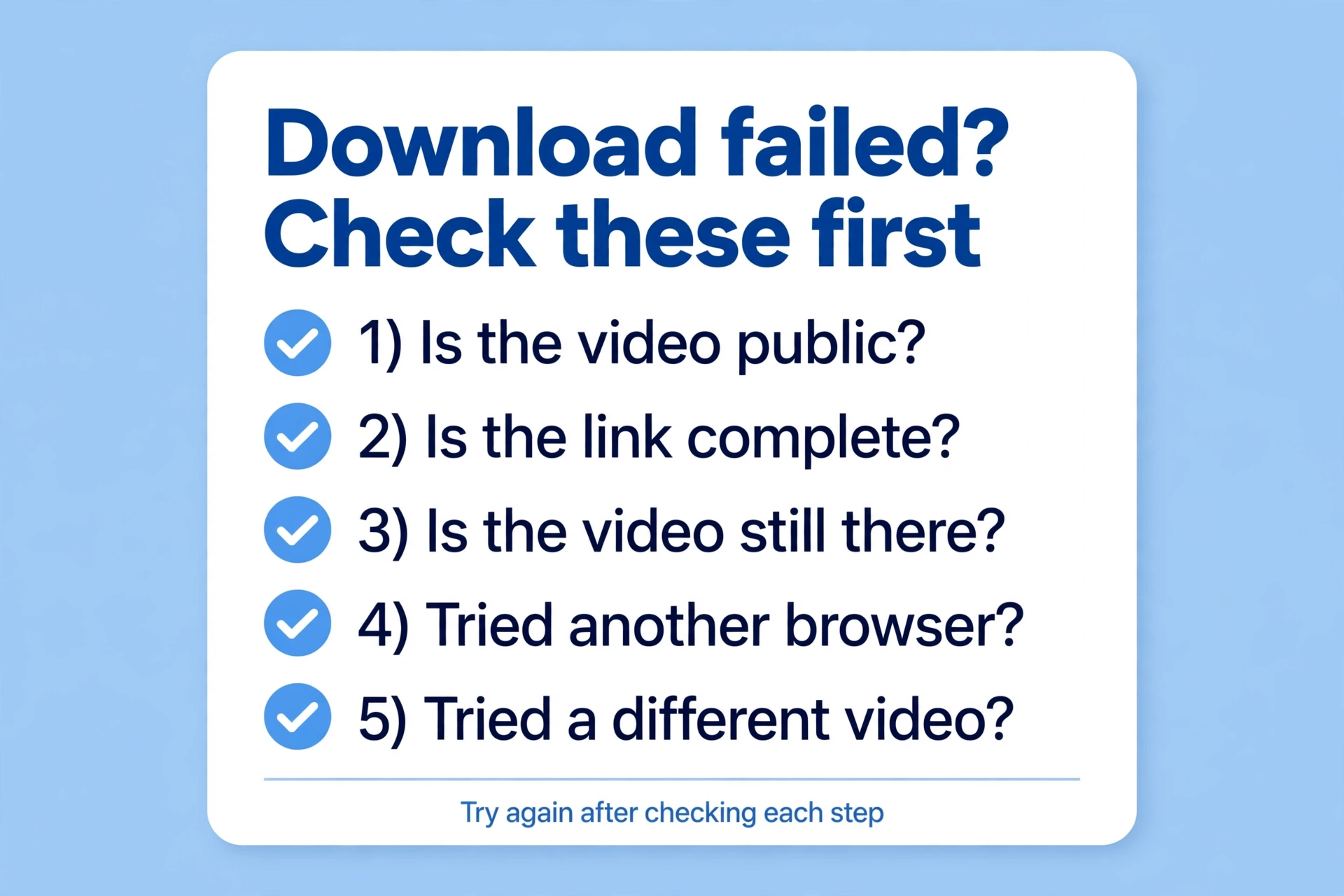
What We Check When a Facebook Download Fails
When we look into a failed download, we start with the same three questions every time: the source link, the video’s accessibility, and the browser. Before writing to us, run through this checklist — it is the same one we use:
- Is the video still available on Facebook?
- Is the post public?
- Did you copy the complete URL, straight from the video?
- Does the URL point to an actual video or Reel?
- Does another public video work?
- Does the same link behave differently in another browser?
- Did the download fully finish before you opened the file?
If you can answer yes to all of these and the download still fails, the problem is not your link. It may be temporary, or it may be something on our side — in that case, the contact section below is the fastest way to get it looked at.
Why Can’t FClip Download Private Facebook Videos?
FClip does not bypass Facebook privacy settings. A video that is visible only to selected people, members of a private group, or another restricted audience cannot be processed from a public link, because the downloader has no permission to see it.
That is not a limitation we can work around, and it is not one you should want worked around. A tool that promises to download private videos is either asking for your Facebook login — which you should never hand to a random site — or asking you to install software that can do real harm to your account.
Only download publicly available videos that you have permission or the legal right to save and use. If a video is private, the honest answer is that a link-based downloader cannot get it, and any site that says otherwise is not being straight with you.
What If No Facebook Video Is Downloading?
If several different public videos fail, do not keep trying the same URL. Instead:
- Refresh FClip.
- Copy a fresh public Facebook video link.
- Try another video or Reel.
- Test a different browser.
- Check again later if the problem continues across multiple public links.
If only one video fails while other public videos work, the source video or its URL is the reason. If everything fails the same way, the problem is most likely temporary — give it some time, then try a fresh link in a clean browser window.
If you are trying FClip for the first time, follow our main guide on how to download Facebook videos for the normal download process, step by step.
When Should You Contact FClip?
If the same problem continues with multiple public Facebook videos and different browsers, contact us with the details. The more specific you are, the faster it can be looked into. Include:
- The type of Facebook link (video or Reel, and the full URL if you are comfortable sharing it)
- Your browser and device
- What happens after you paste the link — an error message, a blank screen, or nothing at all
- The exact error message, copied word for word if there is one
Do not send private account information or passwords. We never need your Facebook login to look into a download problem, and anyone asking for it is not us.
FAQs
Why is my Facebook video link not working?
The link is usually incomplete, the video is private or removed, or the URL does not point to a video at all. Copy the link again directly from the video’s Share menu and try a public video. If the video plays on Facebook but the link still fails, try another browser.
Why does my Facebook video open instead of downloading?
Some browsers open MP4 files in a built-in player instead of saving them. Check your Downloads folder or Files app — the video is often already there. If not, use the browser’s download button, or right-click the video and choose Save video as. Our how-to guide walks through this on iPhone, Android, and PC.
Can I download a private Facebook video?
No. FClip does not bypass Facebook privacy restrictions, and private or restricted videos cannot be processed from a public link. Only download videos you are allowed to watch.
Why is my Facebook Reel not downloading?
Make sure the Reel is still available and public, then copy its link again directly from the Reel itself — not from a story or a shared post about it. Test another public Reel to see whether the problem is that one Reel or all of them. Our Reels guide covers the full process.
Where is my downloaded Facebook video?
It depends on your device. Android: usually the Downloads folder, visible in the Files app or gallery’s Downloads album. iPhone: the Files app first, then move it to Photos with Save Video. PC and Mac: your browser’s Downloads folder.
Why is HD not showing for my Facebook video?
HD availability depends on the source video. If the video was uploaded in lower quality, or only one quality version is accessible, HD will not appear. Try another public video to confirm HD works in general, and read our HD guide for the full explanation.
Why do some Facebook videos work while others do not?
Facebook videos differ in privacy settings, availability, URL format, and source quality. A problem with one video does not mean every public video will fail. Test a second public video — if it works, the first video or its link was the issue.
My downloaded Facebook video has no sound. Is that the same problem?
No — a silent download is a different issue from a failed download. The file saved fine, but the audio is missing or your player cannot play it. Our guide on downloaded Facebook videos with no sound covers the six fixes for that, starting with checking whether the original video has sound on Facebook at all.
Conclusion
Most Facebook video download problems have a simple starting point: check the original video, confirm that it is public and still available, and copy its link again directly from Facebook. That alone fixes the majority of failed downloads. If that does not help, test another public video and another browser — the answer is usually in one of those two checks.
If you are ready to try again, use the FClip Facebook video downloader with a fresh public link. And if you want a clean copy with nothing stamped on top of it, our guide on downloading Facebook videos and Reels without a watermark explains how the quality and watermark-free options work. If you want the simplest route, our guide on how to download Facebook videos without an app or login shows the three-step method.
FClip is intended for supported publicly accessible Facebook videos and Reels. Always make sure you have the necessary rights or permission before downloading or using someone else’s content.
Updated for November 2026: New Guides for Saving Videos
Updated 23 November 2026. These ten fixes were re-checked today and still work. Two new guides may help you further. If you are saving several videos, our guide to downloading multiple Facebook videos at once explains the honest workflow — FClip downloads one video per link, so collect the links first and work through them in order. And if the failing video is in a group or on a page, our guide to downloading Facebook videos from groups and pages explains the privacy rule that causes most failures: public group and page videos can be downloaded, but private-group videos cannot be downloaded by any downloader. If a download succeeds but the file has no sound, see our guide to fixing a downloaded Facebook video with no sound.
On your phone, see how to download Facebook videos on Android or on iPhone.
New: learn how to save Facebook videos to your gallery, or how to download Facebook Live videos after they end.
