
How to Download Facebook Videos and Reels in HD Quality
Facebook videos and Reels can be saved in just a few clicks. If the video is public, copy its link and use FClip to download it on your phone or computer without installing another app.
Facebook also provides a save video option, but it works differently. It saves the post inside Facebook so you can find it later; it does not normally give you an MP4 file on your device.
This guide explains how to download Facebook videos and Reels with FClip, choose the available quality, and fix common download problems. If you want a separate step-by-step walkthrough, see our guide to How to Download Facebook Videos.
How to Download a Facebook Video or Reel
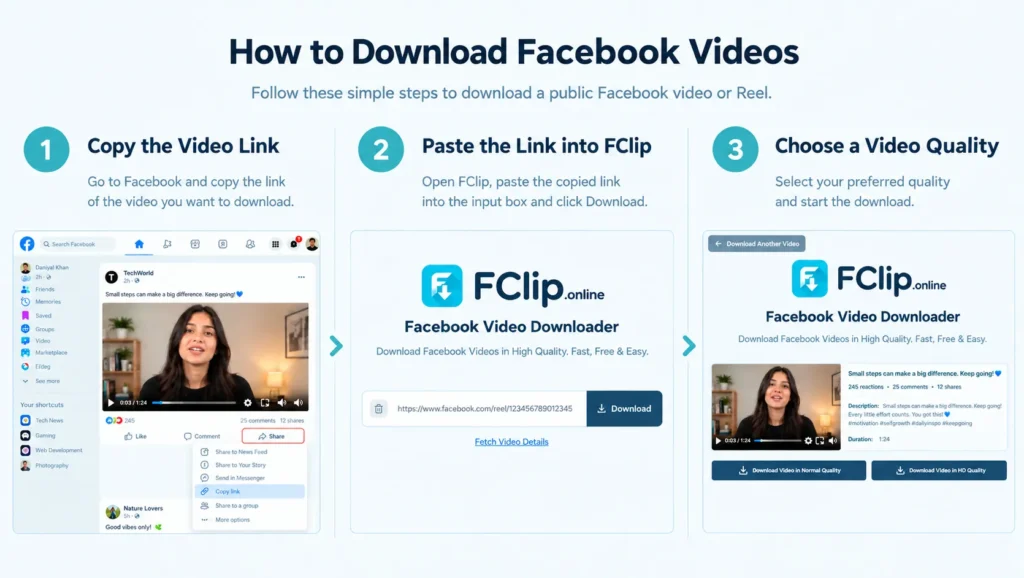
1. Copy the Facebook Video Link
Find the video or Reel on Facebook and tap Share → Copy link. The video needs to be public. FClip doesn’t work with private videos.
2. Paste the Link into FClip
Open FClip.online in your browser.
Paste the link into FClip and click Download. Available download options will appear. Select the quality you want to download.
3. Choose a Video Quality
After the video loads, select the quality you want from the available download options.
The original upload determines the quality you can download. If the original video is not HD, the downloaded file cannot be true HD.
Can You Download Facebook Videos in 1080p?
Yes, Facebook videos can be downloaded in 1080p when the original video is available in 1080p. If the original video is available at a lower resolution, downloading it cannot create true 1080p quality. Here is what the common quality options mean:
| Quality | What it means |
| 360p | Lower quality, smaller file |
| 480p | Standard quality |
| 720p | HD quality |
| 1080p | Full HD quality |
Choose the highest quality option available for that video.
How to Download Facebook Videos on Android
First, copy the Facebook video link on your Android phone. You can find Copy link under the Share button. After that, open FClip and paste the link into the box.
Select the available quality and save the video.
The downloaded file will normally be available through your browser’s download area or your phone’s Downloads folder.
More: How to Download Facebook Videos
How to Download Facebook Videos on iPhone
The process on iPhone is the same as Android. Open Facebook, find a video or Reel, and copy its link. Open FClip in Safari and paste the link into the downloader. Choose the quality you prefer and download the video.
Depending on your iPhone and browser settings, the file may appear in the Downloads folder in the Files app.
How to Download Facebook Videos on PC or Mac
Open Facebook on your PC or Mac and find the video. Copy the link and open FClip in a new tab. Paste the link and click Download. Select your preferred quality and download the video.
Which Facebook Links Work with FClip?
FClip is intended for publicly accessible Facebook videos and Reels.
What matters most is that the link leads to a video you can normally access. If a particular link does not work, open the video on Facebook first and check that it is still available. Then copy the link again and try it in FClip.
This is also useful when a video has been deleted, restricted, or its visibility has changed.
Download Facebook Videos Without an App?
Yes. You can use FClip directly through a web browser, so there is no need to install a dedicated downloader app.
Why Isn’t My Facebook Video Downloading?
If a Facebook video doesn’t download, the problem may be related to the video, its link, your browser, or your internet connection. Check the following:
| Problem | What to check |
|---|---|
| Video isn’t found | Open the original Facebook post and copy the link again |
| No HD option | Check whether a higher-quality version is available for the source video |
| Video was deleted | Confirm that the video still plays on Facebook |
| Private or restricted video | Try a publicly accessible video instead |
| Download doesn’t start | Refresh the page and check your internet connection |
| Video opens in a new tab | Use the browser’s download or Save video as option |
| Download has no sound | Check whether the original Facebook video contains audio |
If the video still plays normally on Facebook, copy its link again and try the new link. If the video is private, deleted, or no longer accessible, a download may not be available.
Why Does the Video Open in My Browser?
Sometimes the video opens in a new tab instead of downloading. Just right-click the video and click Save video as. Choose a folder and save it. On a phone, the steps may be a little different.
Does the Downloaded Video Have Sound?
If the original Facebook video contains audio, the downloaded file should normally include it when the available download option contains the video’s sound.
If you get a video without audio, check whether the original Facebook post itself plays with sound before trying the download again.
Where Are Facebook Videos Saved After Downloading?
The location depends on your device and browser.
Android:
Check the Downloads folder or your browser’s download section.
iPhone:
Check the Downloads folder inside the Files app.
Windows:
Look in the browser’s default Downloads folder.
Mac:
Open the Downloads folder in Finder.
If you can’t find the file, check your browser’s recent downloads list. It should show where the video was saved.
Can You Download Private Facebook Videos?
FClip is intended for publicly accessible Facebook videos and Reels.
Downloading a Facebook video is one thing. Using it somewhere else is different. If it’s not your video, get permission before you post it again. This also applies if you want to use it for business.
Conclusion
Downloading a publicly accessible Facebook video or Reel can be done directly through a web browser. Copy the video link, paste it into FClip, and select the available download quality.
You can download Facebook videos or reels through FClip on any device, such as Android, iPhone, Windows, and Mac. Before downloading, make sure the video is publicly accessible.
FAQs
Is FClip free to use?
FClip provides a free way to download publicly accessible Facebook videos through a web browser.
Can I download Facebook Videos and Reels?
Yes, publicly accessible Facebook Reels and videos can be downloaded when a compatible download option is available. The maximum quality depends on the source video.
Why is my Facebook video not downloading?
The video may be private, deleted, restricted, or the copied link may not be working correctly. Check that the video is publicly accessible and try copying its link again.
How to download Facebook Reels in HD?
If the public Facebook Reel is available in HD, copy its link and paste it into FClip, choose the video quality, and download the video. But the quality depends on the original Facebook video.
Why Does My Downloaded Facebook Video Have No Sound?
Check if the original video has sound. If it does, try downloading it again and choose another quality option. Some videos may not include audio in the downloaded file.