
Want to save a Facebook video to your gallery so it sits next to your photos, ready to watch or share without opening Facebook? There is one catch most people hit: when you download a Facebook video on your phone, it does not go to your gallery. It goes to your Downloads folder — and your gallery app may never show it. The fix takes less than a minute once you know where the file lands and how to move it. In this guide, you will learn how to save Facebook videos to your gallery on Android and to your camera roll on iPhone, using FClip, a free facebook video downloader, with no app to install and no account to create.
Save a Facebook Video to Your Gallery in 2 Steps
The whole job has two parts: first download the video, then move it where your gallery can see it. Skip the second part and the video stays hidden in Downloads, even though it is on your phone.
Step 1: Download the video with FClip. Open the video on Facebook, tap Share, then Copy link. Open fclip.online in your browser, paste the link, tap Download, and choose Normal or HD quality. The MP4 file saves to your Downloads folder. If you need the full walkthrough, our guide on how to download Facebook videos on Android covers the Android route, and our guide on how to download Facebook videos on iPhone covers the iPhone route.
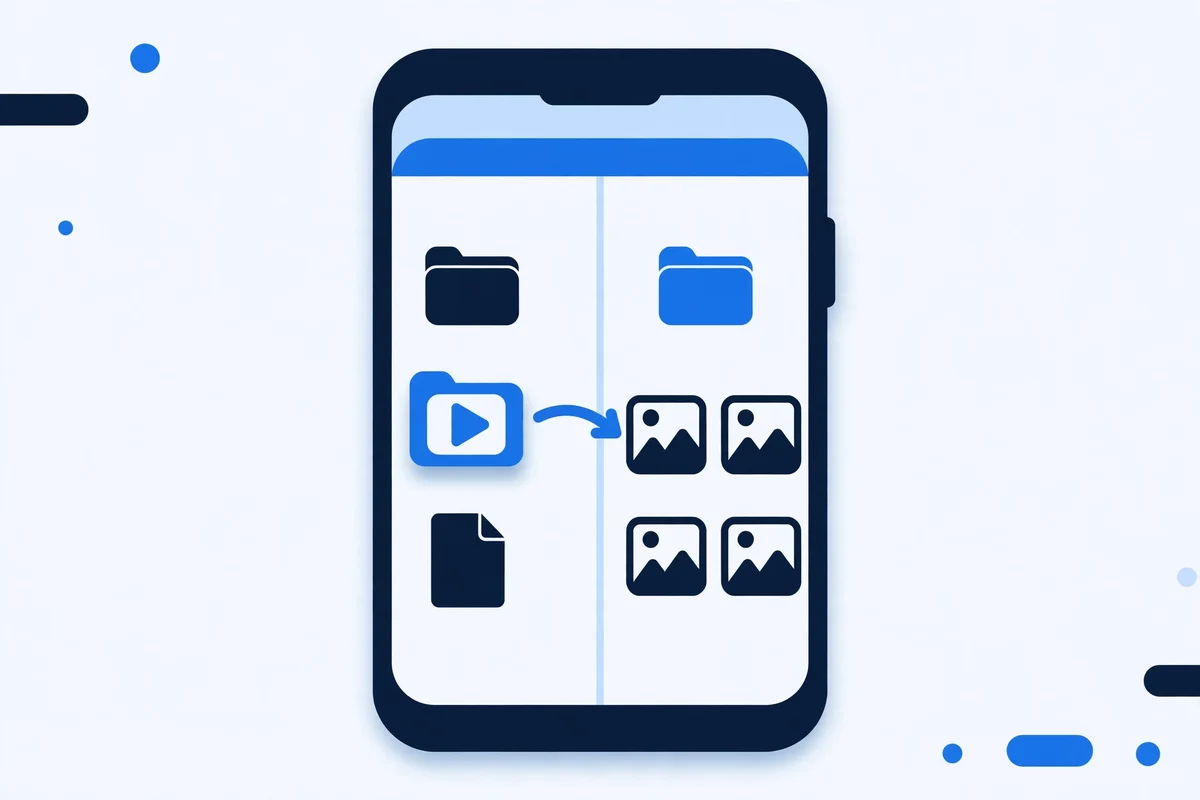
Step 2: Move the file into your gallery. On Android, move the MP4 from Downloads into the DCIM or Movies folder. On iPhone, open the file in the Files app and use Share, then Save Video, which puts it straight into Photos. The sections below show each move tap by tap.
How to Save a Facebook Video to Your Gallery on Android
On Android, a downloaded video goes to the Downloads folder first, and your Gallery app may not show it straight away. That is normal — Android galleries only scan certain folders, so a file sitting in Downloads can be invisible in Photos even though it is on your phone. Here is the easiest way to save a Facebook video on Android phone to your Gallery:
- Open your Files app and go to Downloads. Find the video you just downloaded and play it once to check the picture and sound.
- Long-press the file, tap Move to (or Move), then choose DCIM, Camera, or Movies.
- Open your Gallery or Google Photos app — the video should now appear there, usually within a minute.
On Samsung phones, you can find the same folders in My Files, then Downloads. In Google Photos, you can also find the video under Library, then On this device, then Download, before you move it. If you only want to share the video once, you do not need to move it at all. Long-press the file in Downloads, tap Share, and send it through WhatsApp, Telegram, email or any other app. For the sharpest copy before you move it, see our guide to downloading Facebook videos and Reels in HD quality.
How to Save a Facebook Video to Your Camera Roll on iPhone
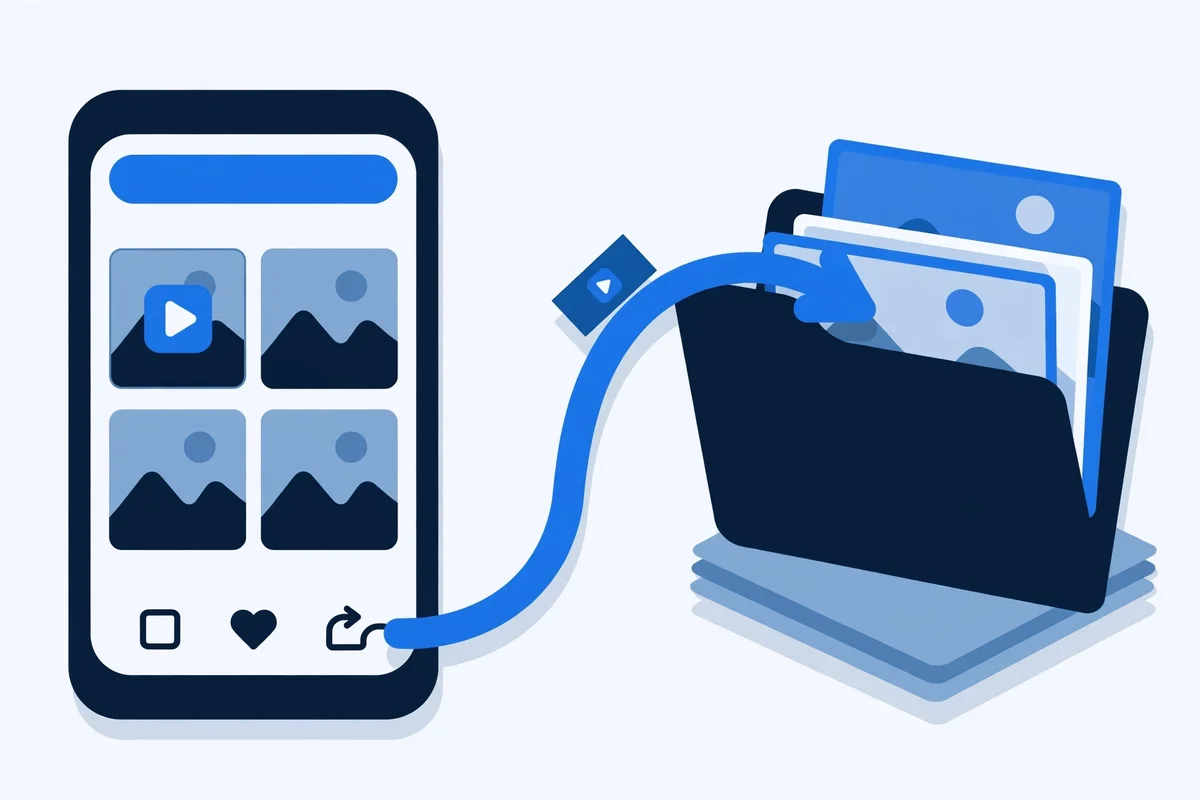
On iPhone, the file also lands outside Photos first — in the Files app, under Downloads. Apple does not let a browser save straight into your camera roll, so there is one extra tap. Here is how to save a Facebook video to your camera roll on iPhone:
- Open the Files app, tap Browse, then Downloads, and find the video you just downloaded.
- Tap the video once to check it plays with sound.
- Tap the Share icon (the square with the upward arrow), then tap Save Video.
- Open the Photos app — the video is now in your camera roll, in the Recents album.
You can delete the copy in Files afterwards to free up space. If the Save Video option does not appear, check that the file is a normal MP4 — a file that is still downloading will not show the option until the download finishes. Our iPhone guide walks through the whole download step by step if you get stuck earlier in the process.
Why Is My Downloaded Facebook Video Not Showing in My Gallery?
If you downloaded a video but cannot find it in your gallery, one of these is almost always the reason:
The download has not finished yet. A video that is still downloading sits in Downloads as a partial file, and your gallery ignores it. Wait for the browser to say the download is complete, then look again.
The file is in the wrong folder. This is the most common reason. Your gallery shows photos and videos from the camera folders (DCIM, Camera, Movies) and often skips Downloads. Move the file, as shown above, and it appears.
Your gallery only shows camera photos. Some gallery apps have a filter or a tab that shows only camera photos by default. Look for an Albums or Folders view, and check the Downloads or Movies album there.
The gallery has not scanned the new file yet. Android scans new files in the background, which can take a minute. Close the gallery app completely, reopen it, and the video is usually there.
You downloaded it in a different browser. Chrome, Samsung Internet and Firefox each keep their own download location. If you downloaded in Chrome, look in Chrome’s Downloads list first — open the browser menu, tap Downloads, and tap the file to open its folder.
Can Facebook Videos Save to the Gallery Automatically?
No — not with a browser download, and any site that promises one-tap auto-save to your gallery is overselling it. Browsers on both Android and iPhone save files to a Downloads folder by design, and moving the file into your gallery is a separate step that only you (or your gallery app) can do. That is actually a good thing: it means no website can silently drop files into your photo library. The two-step move above takes seconds, and once you have done it once, it becomes habit. If you download Facebook videos often, you can also save them to a cloud folder — Google Drive or iCloud — straight from the Files app, so the video is backed up as well as in your gallery.
Is It Free and Legal?
Yes, FClip is completely free to use. There is no payment, no subscription, no account and no login, and you can download as many public videos as you like in Normal or HD quality. On the legal side, only download videos you own or have permission to download, and keep them for personal offline viewing. Downloading someone else’s video and reposting it as your own, or using it commercially without permission, can breach copyright. If you are unsure, ask the creator first. FClip is not affiliated with Facebook or Meta. It does not download private videos, does not convert videos to MP3, and there is no FClip app — the real tool is the free website at fclip.online, used in your browser.
Frequently Asked Questions
How do I save a Facebook video to my gallery on Android?
Download the video with FClip first — it saves to your Downloads folder. Then open your Files app, go to Downloads, long-press the video, tap Move to, and choose DCIM, Camera or Movies. Open your Gallery or Google Photos app and the video will be there.
How do I save a Facebook video to my camera roll on iPhone?
Download it with FClip in Safari — the file goes to the Files app, under Downloads. Open Files, tap the video, tap the Share icon, then tap Save Video. The video appears in your Photos app, in Recents.
Why is my downloaded Facebook video not in my gallery?
It is almost always still in the Downloads folder, which most gallery apps do not scan. Move the file to DCIM, Camera or Movies on Android, or use Share, then Save Video on iPhone. Also check the download actually finished.
Can I save a Facebook Reel to my gallery the same way?
Yes. A Reel downloads as a normal vertical MP4, and the same move works: Downloads to DCIM or Movies on Android, or Share, then Save Video on iPhone. Our guide on how to download Facebook Reels on iPhone, Android and PC covers the download part in full.
Does saving to the gallery lower the video quality?
No. Moving a file between folders never changes its quality — the MP4 is exactly the file you downloaded. To get the sharpest file in the first place, choose HD when you download. Our HD quality guide explains what each quality option really means.
Conclusion
Saving a Facebook video to your gallery is a two-step job: download it with FClip, then move it where your gallery can see it — DCIM or Movies on Android, or Share, then Save Video on iPhone. Once you know the move, it takes seconds, and the video sits next to your photos, ready to watch offline or share. If you also want to keep a finished live stream, our guide on how to download Facebook Live videos shows how to save the replay before Facebook deletes it after 30 days.
Updated 19 November 2026.
